ClipSDDownload

Screenshot tool with an editor One screenshot says more than three paragraphs

Press Alt+W, select part of the screen, add an arrow or a number and paste it into a chat. Need the text from the picture or a translation? Both are in the same window. Free for Windows and Linux.

Download for: WindowsLinux

ClipSD runs on Windows and Linux. Open this page on your computer.

Video: how it works, 1 minute

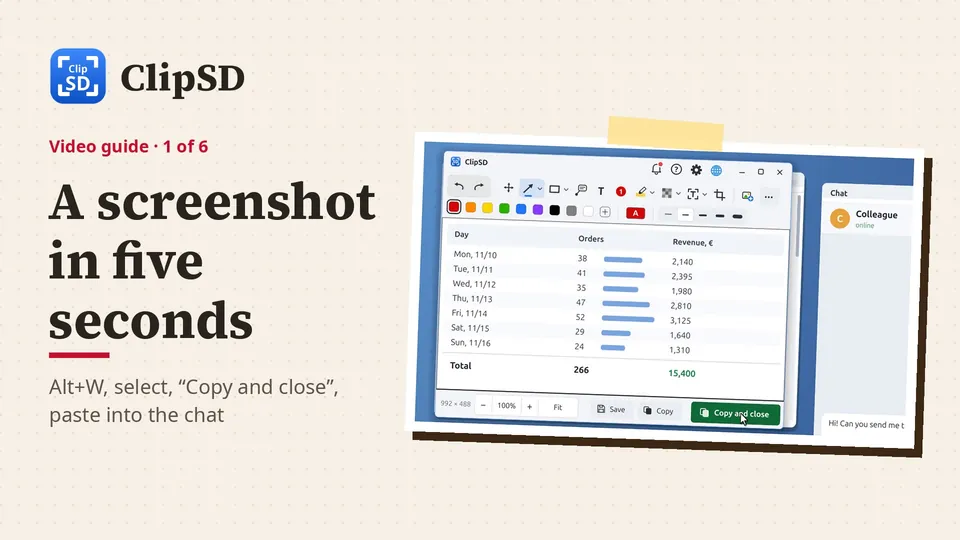
A screenshot in 5 seconds

Video guide · 0:56

A screenshot in 5 seconds

Alt+W, select part of the screen, paste into a chat

  • No account
  • No ads
  • No admin rights to install on Windows
  • Open source, GPL-3.0-or-later
  • 12 interface languages
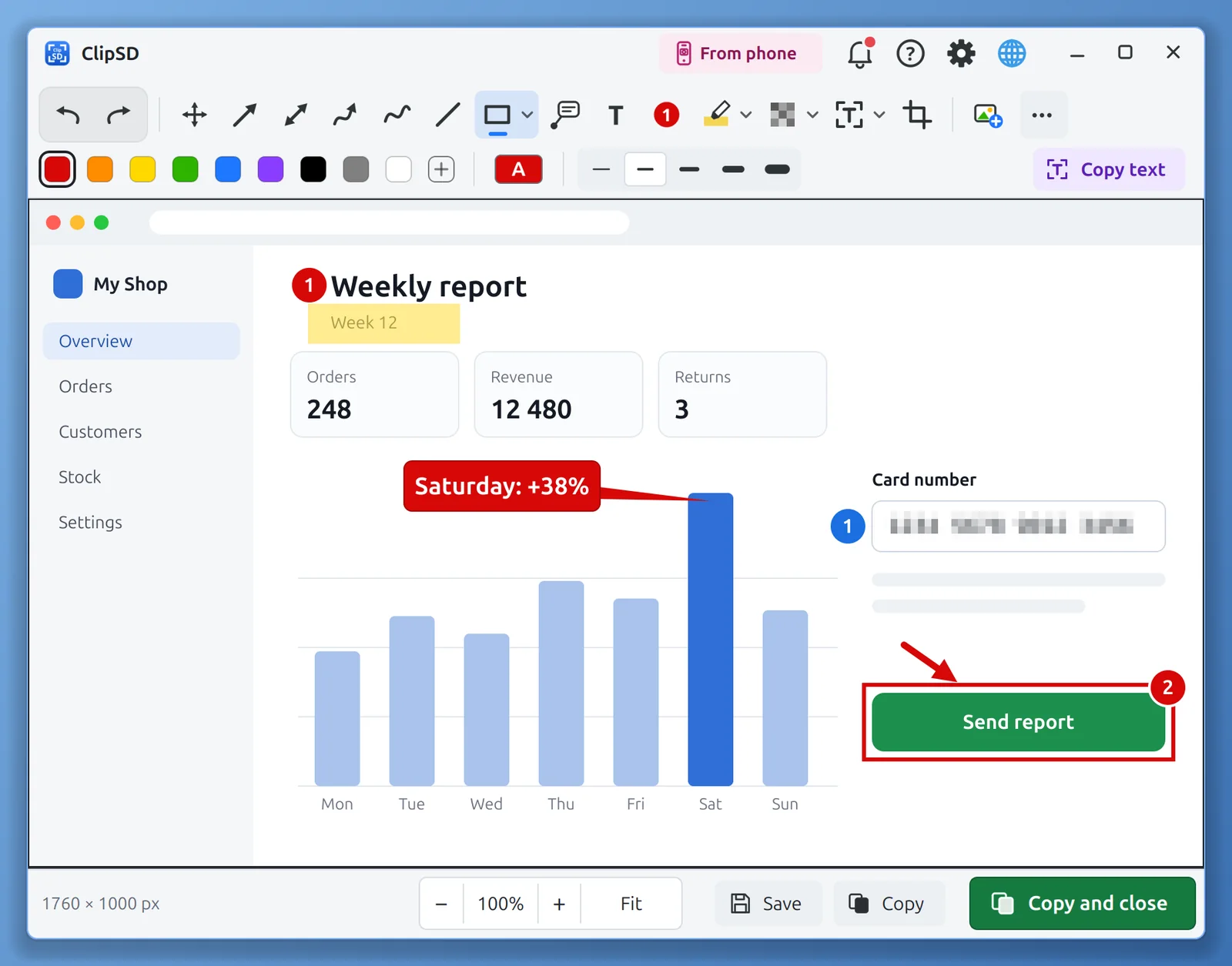
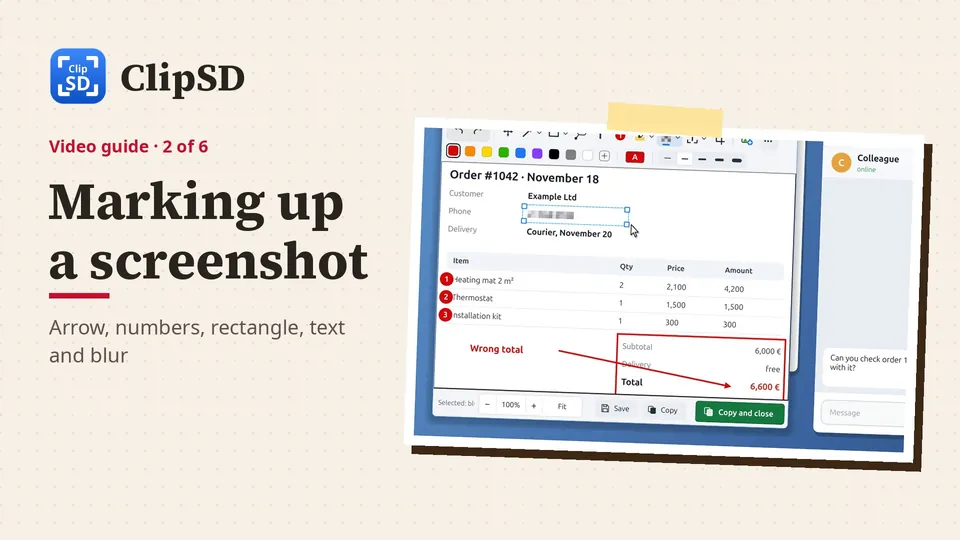
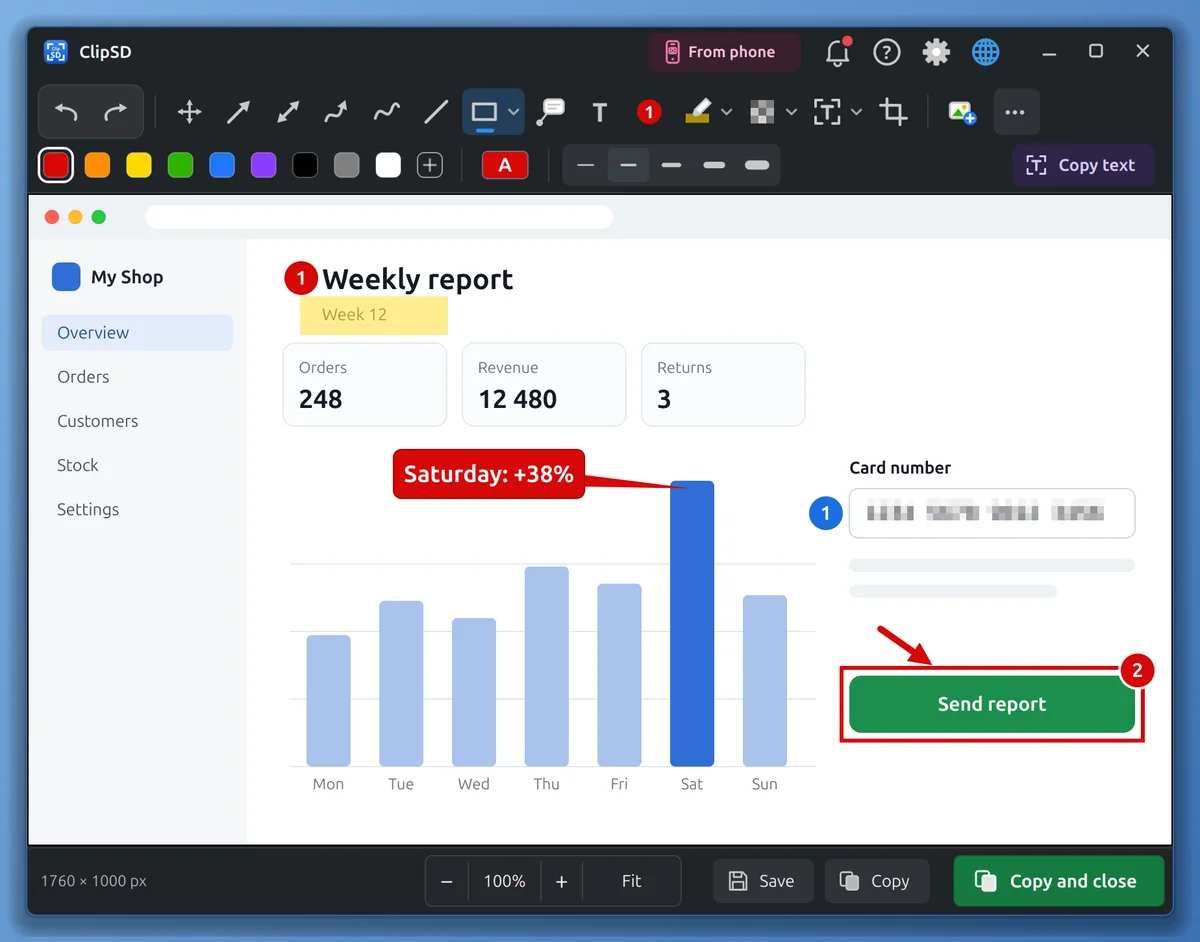
ClipSD editor: a report screenshot with numbers 1, 2, 3, the callout "Saturday: +38%", a marker, a blurred card number and an arrow to a button

Arrow, numbers, a callout, marker and blur. Each one is placed with the mouse.

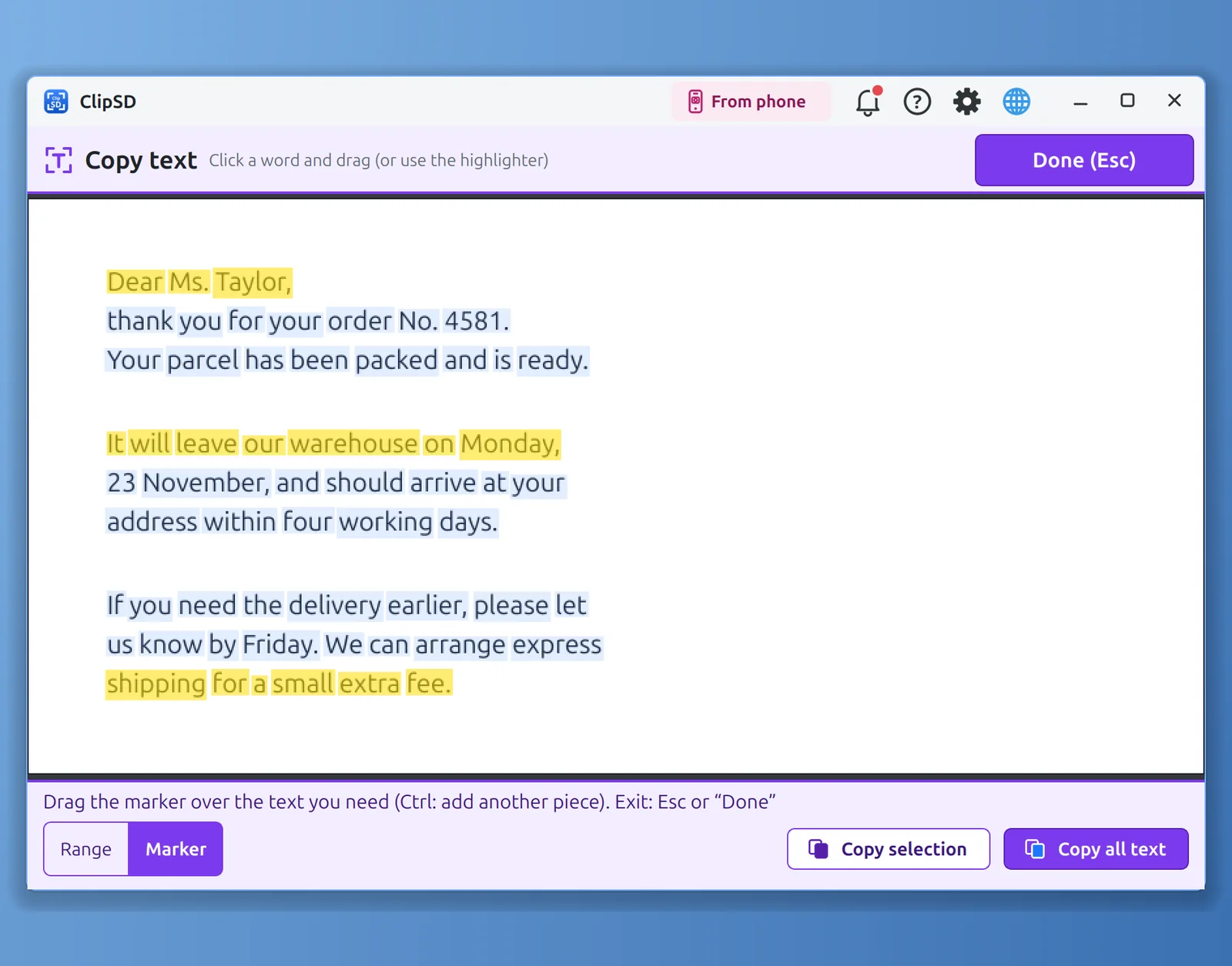
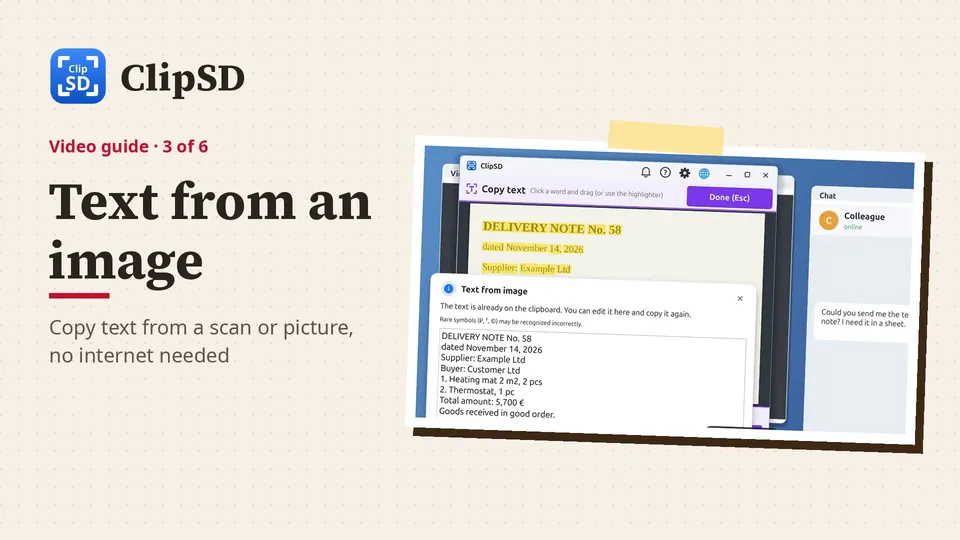
ClipSD editor in text mode: words of an English letter are highlighted, several phrases are marked in yellow

Marker mode: words on the screenshot are highlighted, the yellow selection is already on the clipboard.

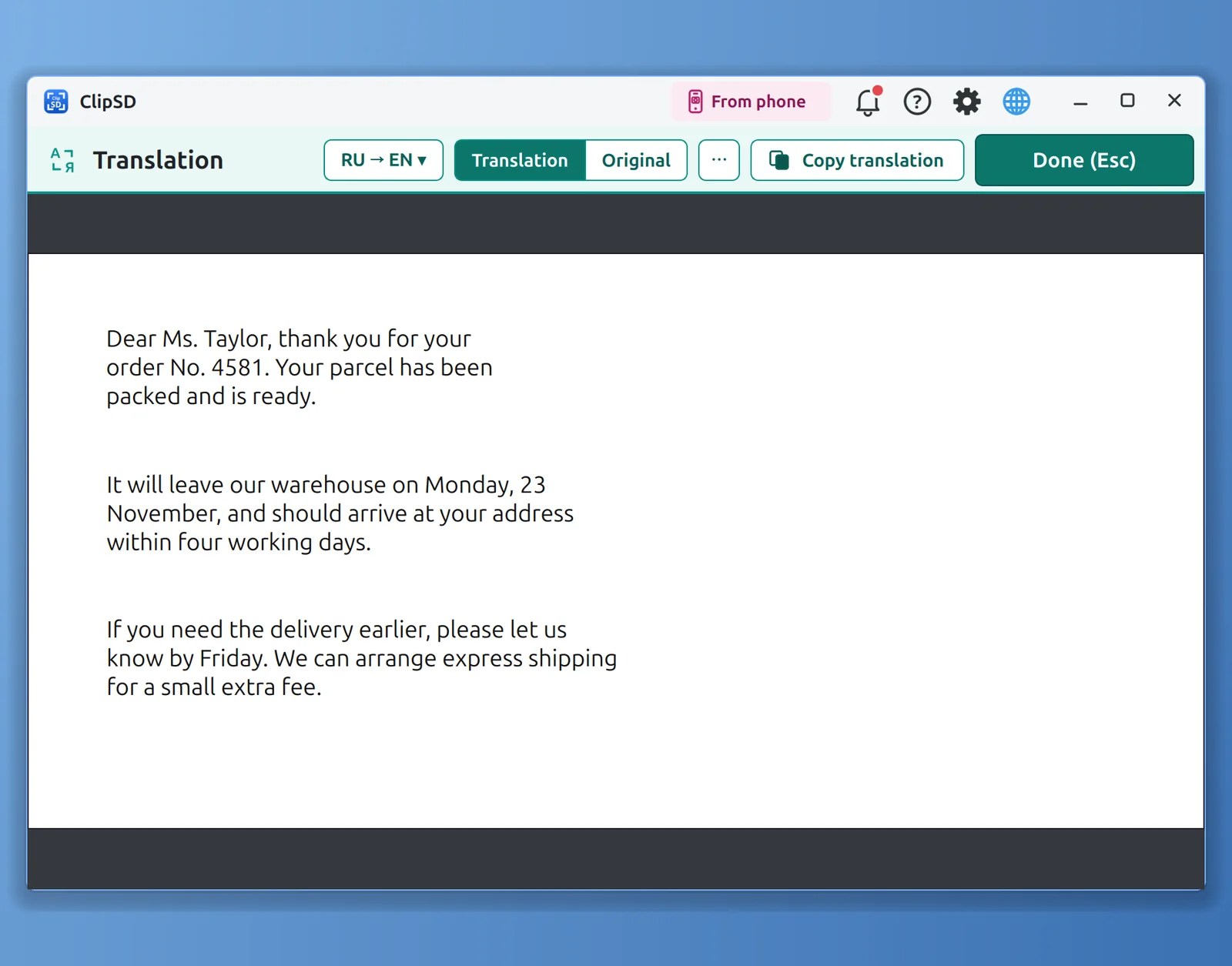
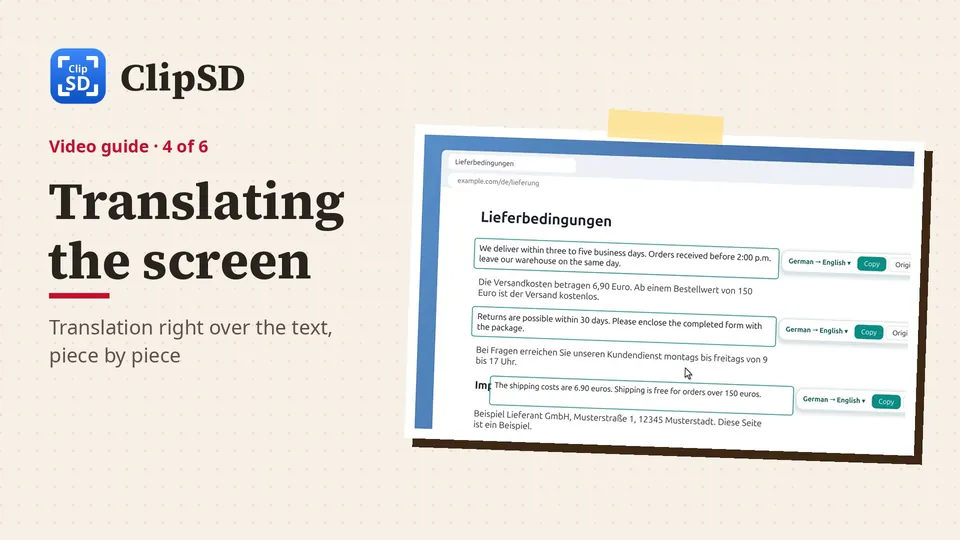
ClipSD editor: the whole screenshot of a Russian letter is translated into English, the translation lies over the text, with the buttons Original and Copy translation below

A Russian letter on the screenshot, translated as a whole with "Translate all".

How to take a screenshot: three steps

No account and no uploads. Each screenshot is saved by itself to a folder inside Downloads; Enter in the editor puts it on the clipboard.

  1. Press Alt+W and select

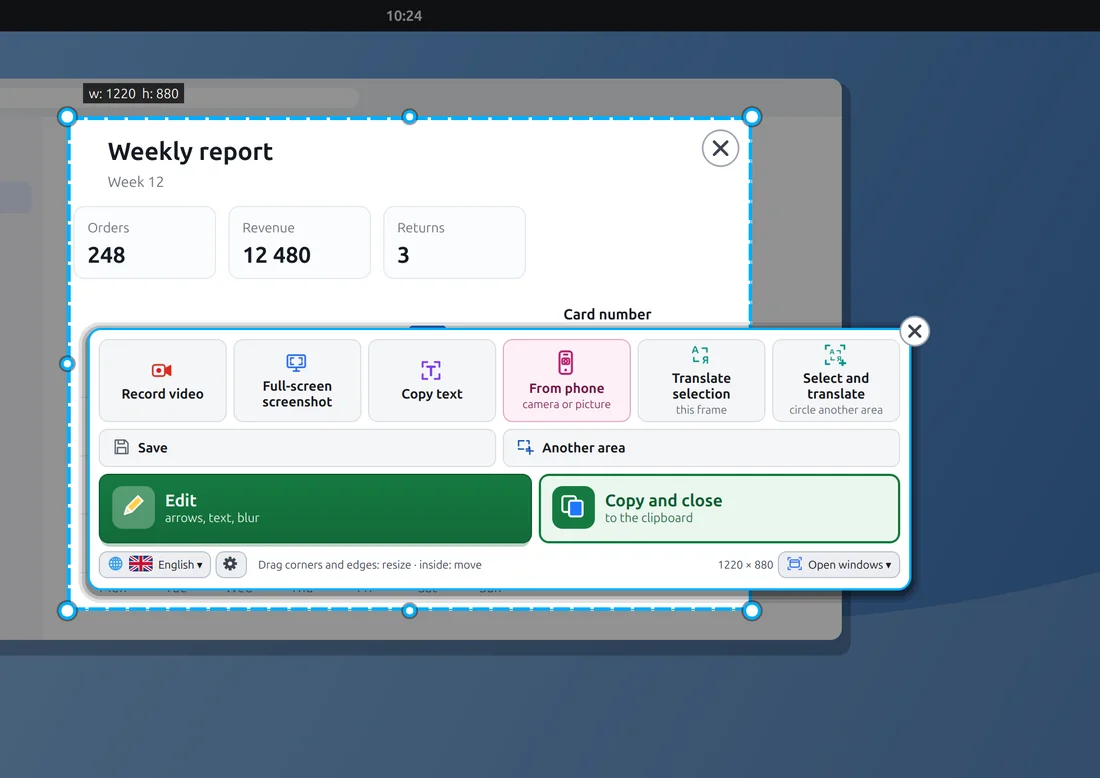
    The screen freezes. Select the part you need: the magnifier next to the cursor helps you hit the edge exactly. Enter opens the editor.

    Selecting an area in ClipSD: a frame around a report, the area size and buttons below the frame, among them Translate selection and Select and translate
  2. Mark what matters

    An arrow, a number, a frame, a label or a marker. Blur hides faces and addresses.

    ClipSD editor with marks on the screenshot
  3. Paste it into a chat

    Enter copies the screenshot. Paste it into a messenger, an e-mail or a document with the usual Ctrl+V.

Try it on your own computer: Alt+W, then select an area.

Download for free
Text from images

Text from an image can be copied like ordinary text

A scanned contract, an error window, a video frame, a photo of a sign. Select the place, press "Copy text" or Ctrl+T, and the words in the picture can be selected like in a normal document. This is text recognition (OCR): it runs on your computer, no internet needed.

  • "Range" mode: press on a word and drag, the text is selected in reading order. "Marker" mode: sweep over words, only what you touch is taken.
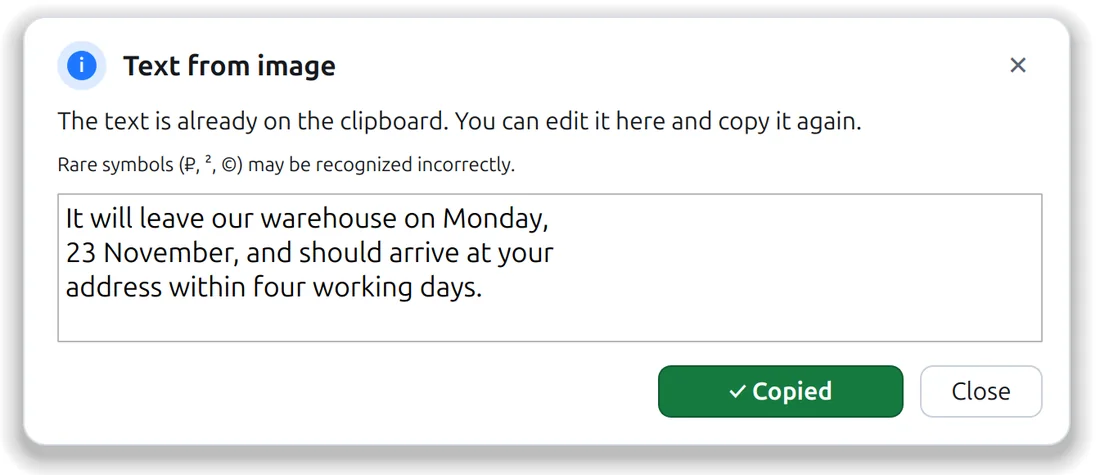
  • The selection is on the clipboard at once. A window next to it lets you correct the text before pasting.
  • A page in two columns is read column by column, lines do not get mixed.
  • Works offline. On Windows the text is read by the recognition built into Windows: the language of the text must be installed in Windows. On Linux you install the free recognition program Tesseract once: ClipSD shows the ready command.
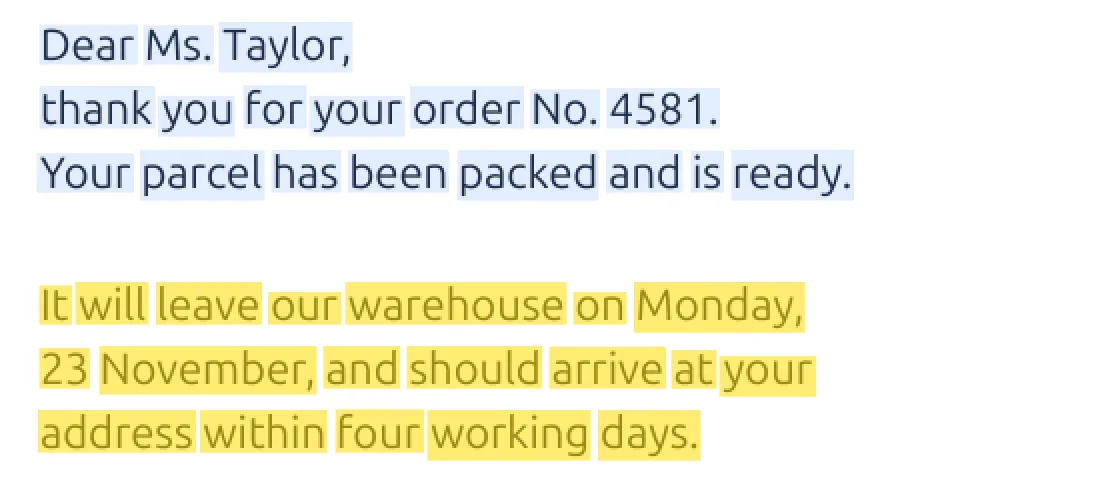
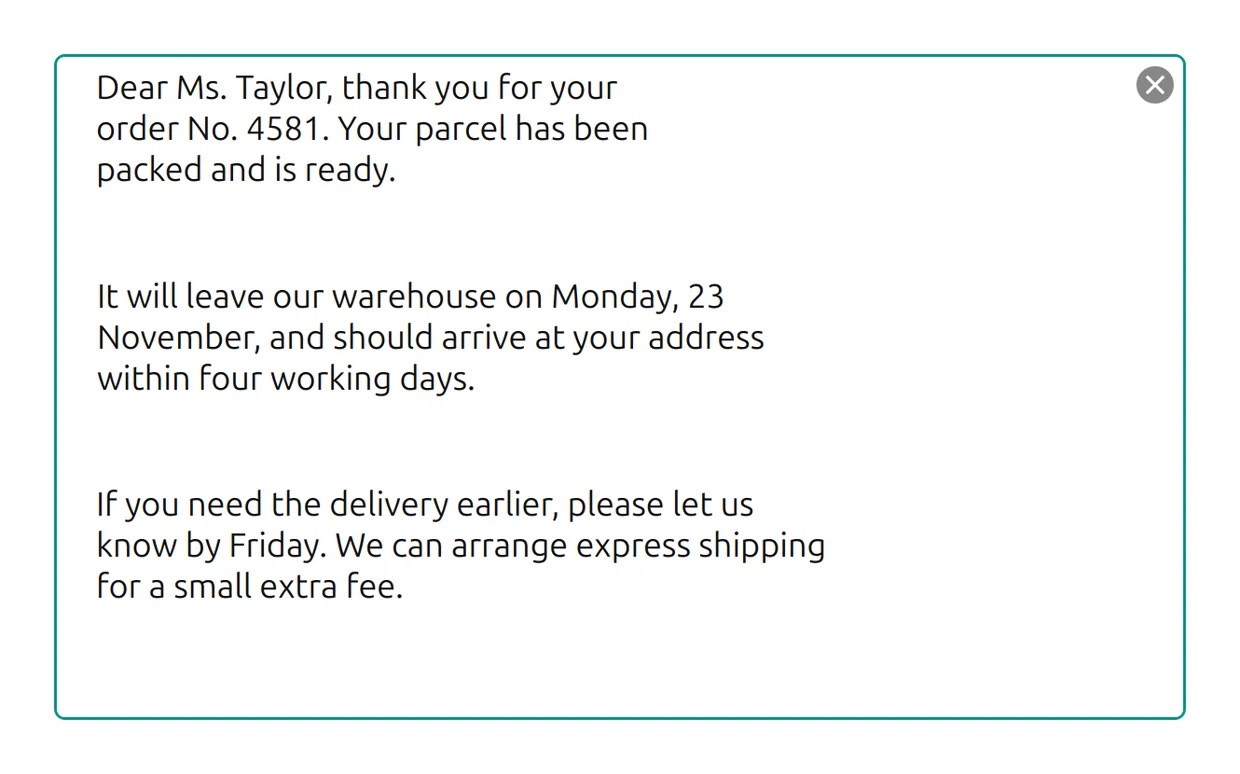
An English letter on a screenshot: words are highlighted, the phrase about the shipping date is selected in yellow
ClipSD window "Text from image" with the recognised text and the button "Copied"
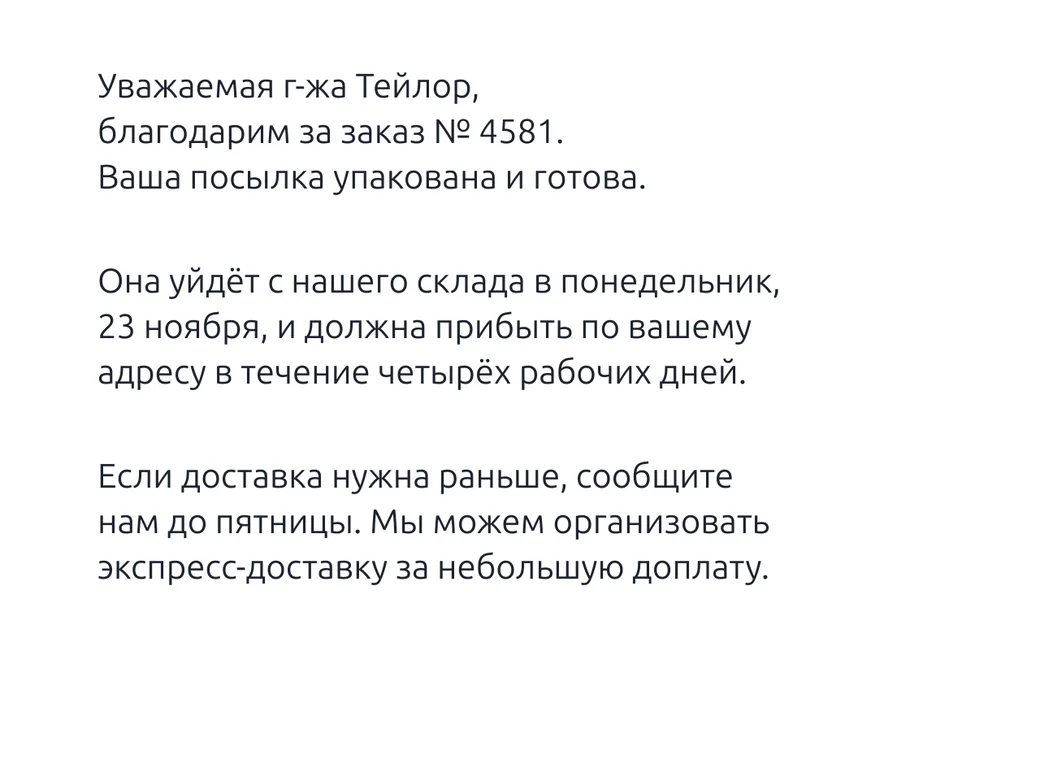
A letter about a parcel delivery in Russian on the screen
ClipSD window with the English translation of the letter over the text
The translation over the letter
On-screen translation

Translating text on the screen

Press Alt+W, select the foreign text and press "Translate selection" or Ctrl+L. A whole monitor at once: the "Whole screen" button in the translation mode bar or Ctrl+Shift+L; the monitor with the frame or the cursor is translated. The translation appears in a window right over the text, like a camera translator on a phone.

  • By default the translation is into the program language. You can choose another of the 20 languages with a button on the window itself.
  • "Copy" puts the translation on the clipboard, "Original" shows the source text. Drag the window aside and keep working.
  • In the editor there is a split button: "Translate all" translates the whole screenshot (Shift+Y), "Selection" only the part you select (Y). The translation lies over the screenshot and is not included in the saved image.

How much you can translate for free

  • 5,000

    characters a day

    Right after installing, without registration.

  • 50,000

    characters a day

    If you enter your e-mail in the translation window. No confirmation needed.

  • 500,000

    characters a month

    With your own Google Cloud key. Google asks you to add a bank card. The program guides you step by step.

What goes online. Only the text you send for translation: it goes to the translation service MyMemory or Google. If you entered an e-mail, it is sent to MyMemory with the request. The screenshot itself stays on your computer. Text in images is recognised on your computer and is not sent anywhere. Apart from translation, once a day the program asks GitHub whether there is a new version; this can be switched off in the settings.

Text from images and screen translation in one window. Try it on any screenshot.

Download for free

When it helps

  • A step-by-step guide

    Numbers 1, 2, 3 right on the screenshot. A ready how-to for a colleague, a customer or yourself in six months.

  • Show a bug

    To a colleague or to support: circle the place and write what is wrong.

  • Help your family

    Where the button is on a website and what to click next. An arrow on the screenshot replaces a phone explanation.

  • Hide private data

    Blur hides faces and addresses. A filled rectangle covers a card number or a password.

  • Get the text out

    An order number from a scan, an address from a photo, an error message from a window. Copied without retyping.

  • Understand another language

    A supplier's letter, buttons in a program, a manual in PDF. The translation appears over the original.

Editor features

Tools for every case, each on its own letter key. Work with the mouse or the keyboard.

Tour of the tools: F1 in the editor

  • Arrows and lines

    Straight, double-headed, freehand, smooth. Hold Shift for exact 45° angles.

  • Numbers and callouts

    Circles 1, 2, 3 with a pointer, and speech bubbles with text.

  • Marker and text

    Mark a line in yellow, add a label in any colour.

  • Blur

    Faces and addresses turn into squares. A card number or a password is safer under a filled rectangle: R with Ctrl.

  • Two-step crop

    Drag a frame, adjust the edges, press Enter. Until Enter the screenshot is untouched.

  • Zoom

    Ctrl and the mouse wheel zoom into small details. "Fit" shows the whole screenshot again.

  • Choose a monitor

    Full-screen screenshot: all monitors at once or just one.

  • Move marks

    Hold the right mouse button and drag any mark. No need to switch tools.

  • Same area again

    The next Alt+W highlights the previous frame: no need to select again.

  • Clipboard and file

    Enter in the editor copies the screenshot. Every screenshot is saved as PNG or JPEG by itself.

  • Picture on a screenshot

    Insert a second picture from the clipboard, from a file or as a new screenshot.

  • Light and dark

    Two themes plus your own colours for the frame and panels.

  • Screenshot shape

    Rounded corners, oval or circle. In PNG the area outside the shape is transparent, in JPG it is white.

  • Open windows

    The button at the bottom of the selection panel or the W key: pick a window and the frame fits it exactly.

  • From phone

    A tile on the selection panel and a button in the editor: take a photo with the phone camera and it lands in the screenshot as a separate picture.

  • Your language

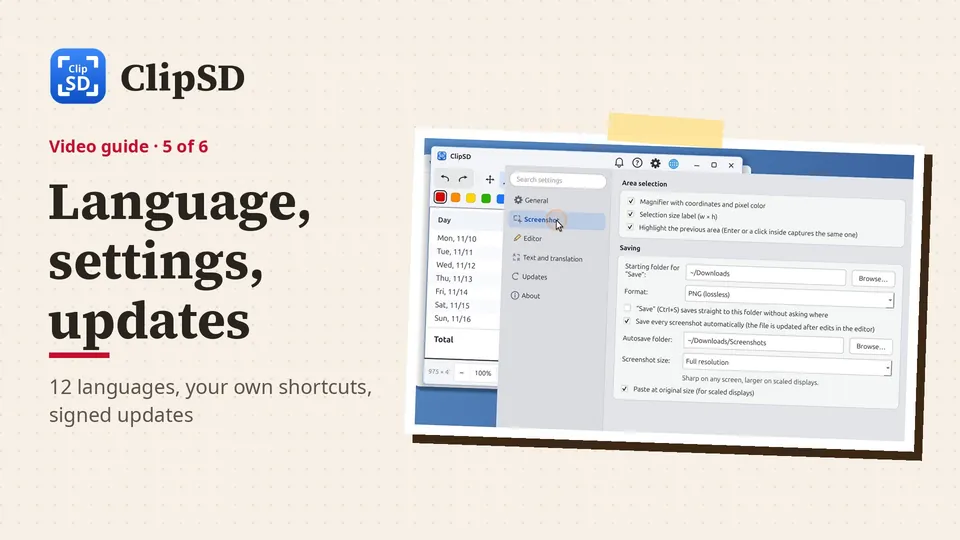
    12 interface languages. You choose the language when you first start the program and can change it in the settings or in the menu of the icon next to the clock.

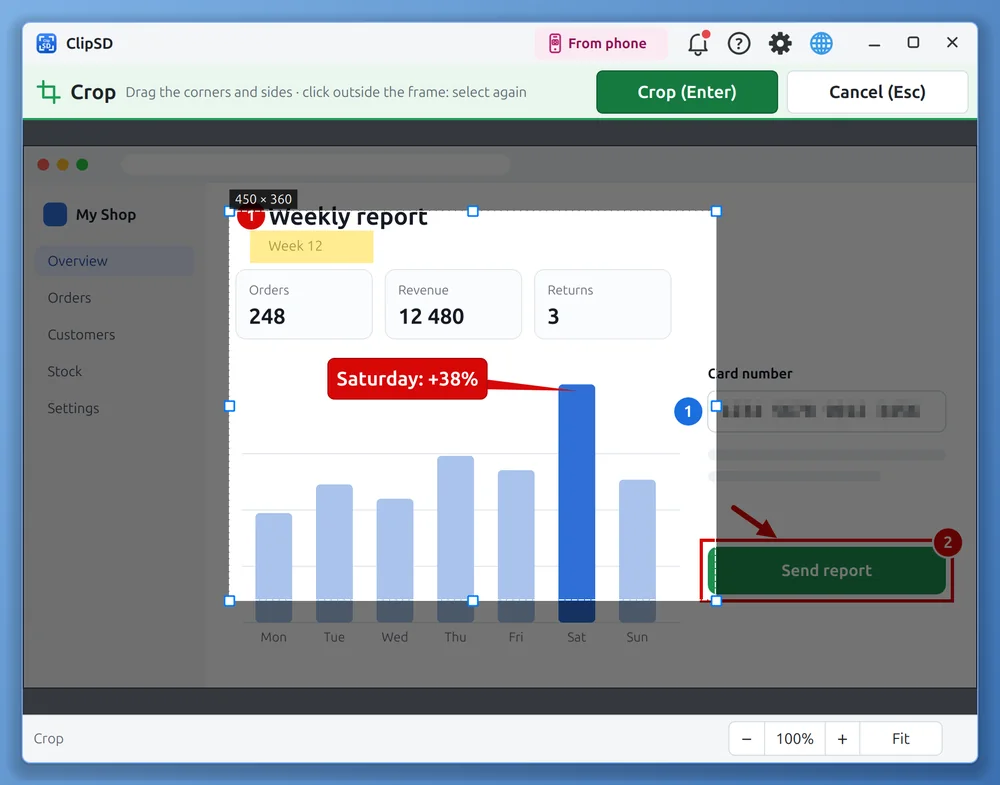
Cropping in the ClipSD editor: a frame with its size and the buttons Crop and Cancel
Crop: a frame, then Enter
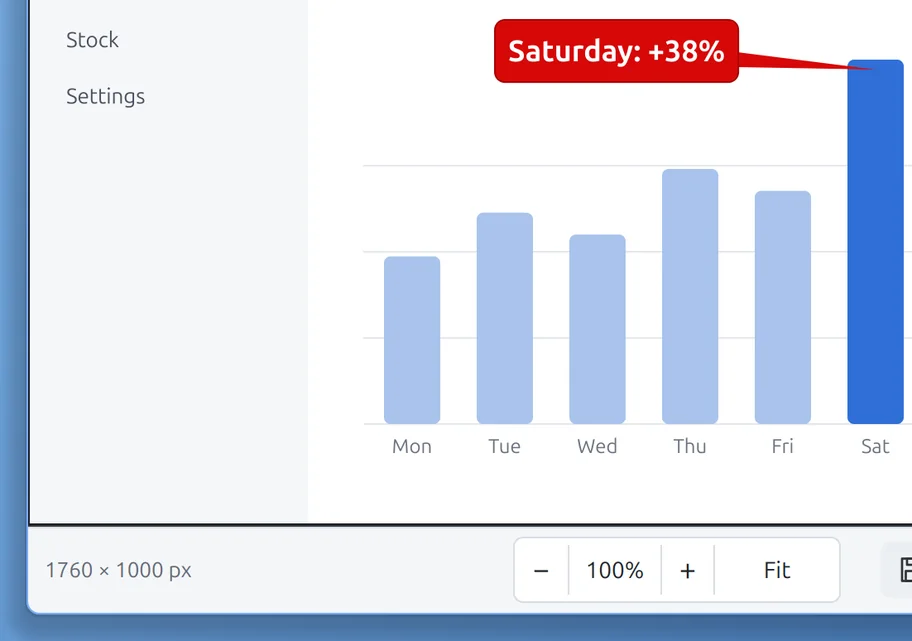
Bottom panel of the ClipSD editor: screenshot size, zoom buttons and Fit
Zoom and Fit at the bottom of the window
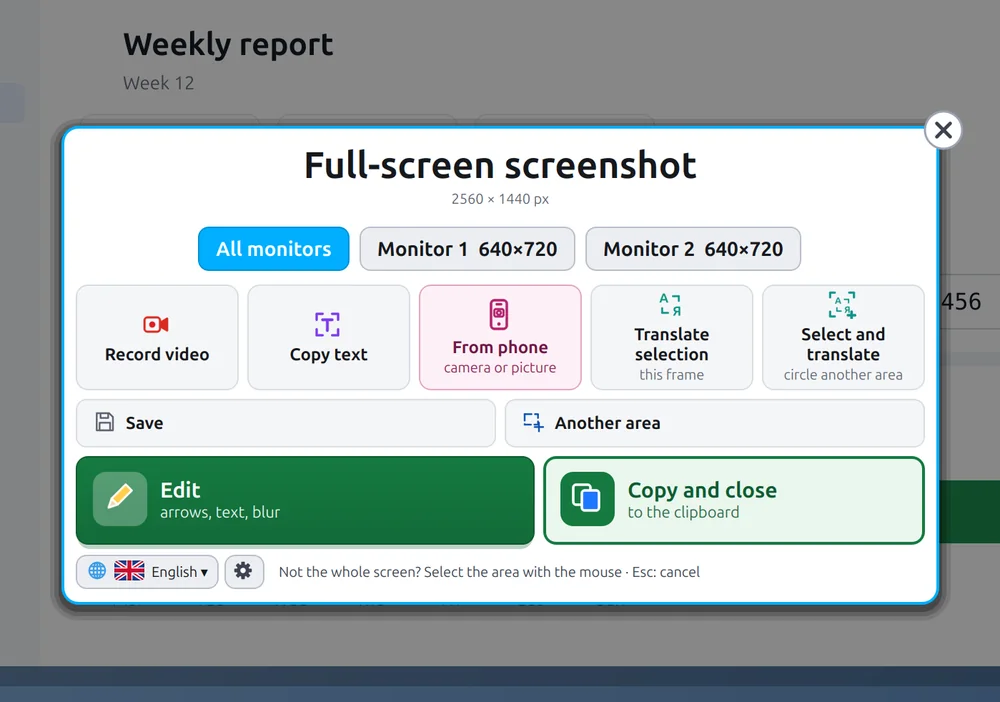
The window "Full-screen screenshot" with the buttons All monitors, Monitor 1, Monitor 2
Full screen: which monitor to capture
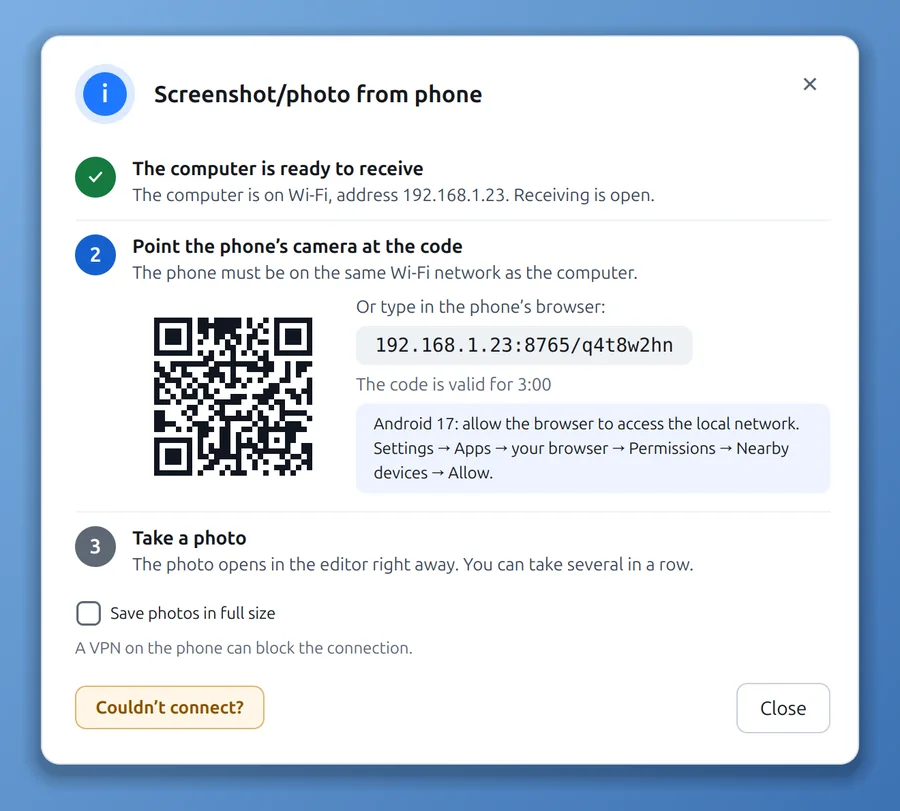
ClipSD window "Screenshot/photo from the phone": a QR code, the address for the phone browser and three steps

Screenshot and photo from the phone

Show the code on the computer, point the phone camera at it and shoot: the photo opens in the editor at once. No app to install, everything goes over your home Wi-Fi.

The editor is free, with no sign-up and no ads.

Download for free

Light or dark

Choose on the first start, change it in the settings at any time.

ClipSD editor in the light theme
Standard, light
ClipSD editor in the dark theme
Professional, dark

Download ClipSD 1.36.3 free for Windows and Linux

Looks like you use Windows or Linux. The right file is marked.

Latest version1.36.3What’s new

How to find your version

ClipSD icon by the clock, item “About”: the version number is in the window title. Or item “Settings”, section “Updates”, line “ClipSD version”.

If your version is older: ClipSD offers to update itself once a day. You can also click “Check for updates” in the same icon menu.

Your system

Windows

Windows 10 and 11, 64-bit. Two ways to install, either one works.

Get it from Microsoft Store
Microsoft Store · version 1.32.0
Download the installerFile .exe · 33 MB · version 1.36.3

Microsoft Store currently has version 1.32.0, while the installer on this site is already 1.36.3. The new version will appear in the Store after Microsoft's review.

  • Microsoft Store: installs without Windows warnings, updates arrive later (Microsoft's review takes a few days).
  • Installer from the site: new versions at once. On first launch Windows shows a blue window, and you can get past it: "More info", then "Run anyway".

SHA-256 checksum: 8121edcafc72b20d42f58400db41345b6f6515b1bfb53d4d225c4bbda9e28524

Code signing policy

  • The icon appears next to the clock. ClipSD starts with Windows; you can untick this in the installer
  • Text from images is read by the recognition built into Windows
  • Text in a language is recognised if that language is installed in Windows

Did Windows show a blue window?

The program does not have a paid digital signature yet, so Windows asks. Two clicks:

  1. Click "More info"
  2. Click "Run anyway"

Your browser may warn that the file is rarely downloaded. It only means that the program is new. Compare the SHA-256 checksum with the digits next to the button.

How to check that the file is genuine: signing and checksums

Your system

Linux

Ubuntu 22.04 and newer, Debian 12, Fedora, Mint and similar, 64-bit. X11 and Wayland.

Download free for Linux

ClipSD-1.36.3-linux-x86_64.tar.gz · 77 MB · version 1.36.3

SHA-256 checksum: b71279244b1a14def07703b05ca7a0a5868502e80daa53f9c623dcb432b69fe1

Install with one command (no sudo):

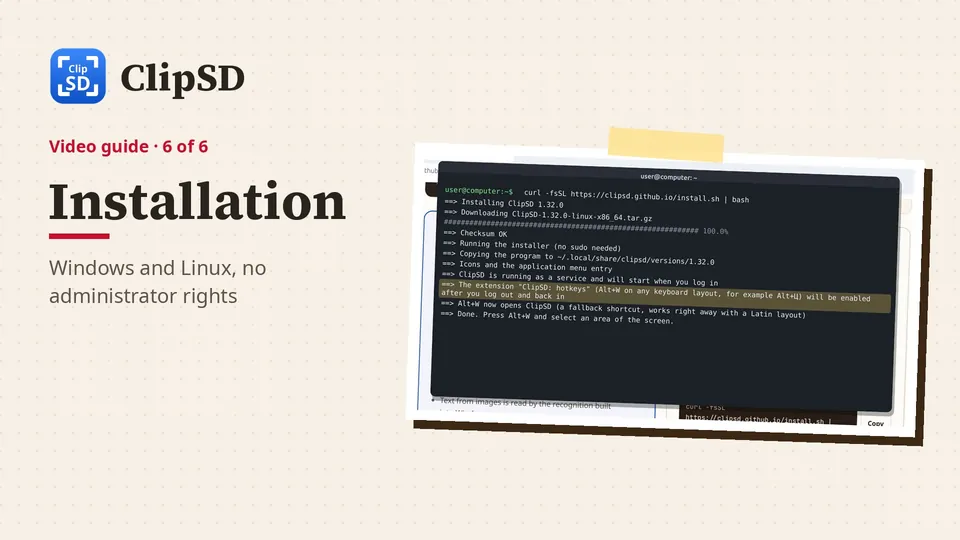
curl -fsSL https://clipsd.github.io/install.sh | bash
Or by hand: download, check the sum, unpack, install:
curl -fLO https://github.com/clipsd/clipsd/releases/download/v1.36.3/ClipSD-1.36.3-linux-x86_64.tar.gz
curl -fLO https://clipsd.github.io/downloads/SHA256SUMS
sha256sum -c --ignore-missing SHA256SUMS
tar -xzf ClipSD-1.36.3-linux-x86_64.tar.gz
cd clipsd-1.36.3
bash install.sh
Which Linux fits

Any 64-bit (x86-64) Linux with glibc 2.35 or newer: Ubuntu 22.04+, Linux Mint 21+, Debian 12+, Fedora 36+, openSUSE Tumbleweed, Arch and its derivatives, Zorin OS 17+, Pop!_OS 22.04+, elementary OS 7+ and similar.

Not supported: ARM (Raspberry Pi and others), Ubuntu 20.04 and older, Debian 11, CentOS 7.

One build for all of these systems: everything needed is inside the archive, so there are no separate packages per version. Alt+W: GNOME and X11 sessions set it by themselves; in KDE and other Wayland desktops assign it in the keyboard settings.

  • Installation needs neither an administrator password nor an internet connection: Python and the interface libraries are already inside the archive
  • The program is installed into ~/.local/share/clipsd, starts with the command clipsd and launches when you log in
  • In GNOME, Alt+W is assigned automatically and works with both keyboard layouts after you log in again. In an X11 session ClipSD catches Alt+W itself. Otherwise, assign a shortcut in the keyboard settings to the command clipsd --region
  • For text from images, Tesseract is installed once. It is one command with the administrator password, ClipSD shows it

Install with an AI assistant

Give your AI assistant a short brief: what the program is, where the files are, the install and checksum commands for Linux and Windows. The same text is in the file install.txt.

Show the instruction text
ClipSD 1.36.3: a free screenshot tool with an editor for Windows 10/11 (x64) and Linux (x86-64). License GPL-3.0-or-later.
Alt+W selects an area; arrows, numbers, blur and text marks; copy text from an image (OCR); translate text on screen.
Site: https://clipsd.github.io/   Source: https://github.com/clipsd/clipsd   Checksums of the release files: https://clipsd.github.io/downloads/SHA256SUMS

LINUX (x86-64 only, glibc 2.35 or newer; installs for the current user, no sudo)
Fits: Ubuntu 22.04+, Linux Mint 21+, Debian 12+, Fedora 36+, openSUSE Tumbleweed, Arch and derivatives, Zorin OS 17+, Pop!_OS 22.04+, elementary OS 7+.
Does not fit: ARM (Raspberry Pi), Ubuntu 20.04 and older, Debian 11, CentOS 7. One build serves all of them.
One command:
  curl -fsSL https://clipsd.github.io/install.sh | bash
(It reads the version from https://clipsd.github.io/channel/stable/latest.json, downloads the archive from GitHub Releases, checks SHA-256 against https://clipsd.github.io/downloads/SHA256SUMS and stops on a mismatch, then runs the install.sh of the archive. Extra arguments: ... | bash -s -- --force-replace-dev)
By hand, with the check:
  curl -fLO https://github.com/clipsd/clipsd/releases/download/v1.36.3/ClipSD-1.36.3-linux-x86_64.tar.gz
  curl -fLO https://clipsd.github.io/downloads/SHA256SUMS
  sha256sum -c --ignore-missing SHA256SUMS
  tar -xzf ClipSD-1.36.3-linux-x86_64.tar.gz
  cd clipsd-1.36.3 && bash install.sh
Installed into ~/.local/share/clipsd, the command is ~/.local/bin/clipsd (also in the application menu).
Alt+W: GNOME and X11 sessions set it themselves; in KDE and other Wayland desktops assign the command `clipsd --region` in the keyboard settings.
Uninstall: bash ~/.local/share/clipsd/current/uninstall.sh   (add --purge to delete settings and screenshots too)

WINDOWS 10/11 x64 (current user, no administrator rights)
Installer: https://github.com/clipsd/clipsd/releases/download/v1.36.3/ClipSD-1.36.3-Setup.exe   SHA-256 8121edcafc72b20d42f58400db41345b6f6515b1bfb53d4d225c4bbda9e28524
Check (PowerShell): (Get-FileHash .\ClipSD-1.36.3-Setup.exe).Hash
Silent install: .\ClipSD-1.36.3-Setup.exe /VERYSILENT /SUPPRESSMSGBOXES /NORESTART
A silent install goes into %LOCALAPPDATA%\Programs\ClipSD and does not start the program: start it from the Start menu (ClipSD) or run %LOCALAPPDATA%\Programs\ClipSD\ClipSD.exe. The installer has no signing certificate yet, so SmartScreen may show a blue window: More info, Run anyway.
Uninstall: Settings > Apps > ClipSD, or "%LOCALAPPDATA%\Programs\ClipSD\unins000.exe" /VERYSILENT /SUPPRESSMSGBOXES /NORESTART (settings and screenshots stay unless you delete them).

Updates: the program checks once a day and offers to update itself. Screenshots never leave the computer; only text sent for translation goes online. More facts for assistants: https://clipsd.github.io/llms-full.txt

New versions

  1. Once a day ClipSD checks whether there is a new version and offers to install it: "Update", "Later" or "Skip this version". To check right away: the menu of the icon next to the clock, "Check for updates".

  2. The update file is checked with a digital signature and a checksum. If the new version does not start, the program goes back to the previous one by itself. The update waits while there are unsaved marks in the editor.

  3. If you have ClipSD 1.29 or older, move to the new version once by hand: download the file on this page and install it over the old one. Settings, the translation key and screenshots are kept. The automatic check can be switched off in the settings, section Startup.

Source code

ClipSD is licensed under the GNU GPL v3 or later. The source code of every version is on GitHub next to the release files.

Source code of this version on GitHub (opens in a new tab)

GitHub (opens in a new tab)

What your computer needs

  • Windows 10 or Windows 11, 64-bit
  • Linux x86-64: Ubuntu 22.04, Debian 12, Fedora 36 and newer (glibc 2.35 or newer)
  • The internet is needed only for translation and updates

What's new in 1.36.3

Release date:

  • The interface in 12 languages: you choose the language on the first start and change it in the settings or in the icon menu
  • ClipSD updates itself: once a day it checks for a new version and installs it when you press "Update"
  • The update is checked with a digital signature; if something fails, the previous version comes back
  • Linux: a ready-to-use build that installs without an administrator password or an internet connection

All versions

How to uninstall

  • Windows: Settings, section Apps, ClipSD, Uninstall. Or the shortcut "Uninstall ClipSD" in the Start menu. The uninstaller asks whether to delete the ClipSD settings and screenshots too; if you leave the box unticked, the settings in %APPDATA%\ClipSD and the screenshots stay.
  • Linux: in a terminal run bash ~/.local/share/clipsd/current/uninstall.sh. It removes the program, the menu shortcut, autostart, the Alt+W shortcut and the GNOME extension "ClipSD: hotkeys". Settings in ~/.config/clipsd and screenshots stay; to delete them too, run the same file with --purge.

Learn it in three minutes

The program shows you where everything is. Below are answers to common questions.

  1. On the first start ClipSD offers a choice of theme and gives a tour of the editor.

  2. The "?" button or F1 in the editor repeats the tour of the tools.

  3. Point at a button: the tooltip says what it does and which key it has.

Frequently asked questions

Download and install

Where can I download ClipSD for free, and is it really free?

Yes. You can download ClipSD on this page, in the Download section: an installer for Windows and an archive for Linux. No ads, no trial period, no paid features. The source code is open under the GNU GPL v3 or later: you can read it and check it.

How do I install a new version?

ClipSD installs new versions itself: once a day it checks and offers "Update". To check right away: the icon menu, "Check for updates". If you have version 1.29 or older, download the new version on this page once and install it over the old one. Settings and screenshots are kept.

Why does Windows show a blue window when installing?

ClipSD does not have a paid digital signature yet. Click "More info", then "Run anyway". You can check that the file is genuine with the SHA-256 checksum next to the download button.

Screenshots

How do I take a screenshot of part of the screen?

Press Alt+W in any program and select an area with the mouse. Enter opens it in the editor, Ctrl+C copies it and closes the window. Clicking the ClipSD icon next to the clock does the same.

How do I capture the whole screen?

After Alt+W, click without selecting or press "Full screen" (Ctrl+A). With several monitors, choose all at once or one of them.

How do I hide a card number or a face?

Cover a card number, a password and other important data with a filled rectangle: choose Rectangle (key R) and draw with Ctrl held down. Faces and addresses can be hidden with Blur (key B): the place turns into squares and cannot be read at a glance, but large text under the squares can sometimes be made out.

Where are screenshots saved?

Each screenshot is saved right away to a folder inside Downloads; after edits the file is updated. On Windows it is Downloads\Screenshots. On Linux it is Downloads/Screenshots, or «Загрузки/Скриншоты» if your home folder has a Russian «Загрузки» folder. The folder and format can be changed in the settings. Ctrl+S saves to a file and closes the editor; by default it asks where to save, and the question can be switched off in the settings. Enter copies the screenshot to the clipboard.

How is ClipSD different from the Windows Snipping Tool?

ClipSD works on both Windows and Linux; the Snipping Tool exists only on Windows. The editor has numbers with a pointer and callouts, and text on the screen can be translated. ClipSD remembers the previous area, so the next screenshot of the same place takes one Enter.

Text and translation

How do I copy text from an image?

Press Alt+W, select the place with text and press "Copy text" (Ctrl+T). The words get highlighted: sweep over the ones you need and they are on the clipboard. In the editor the button "Copy text" or the key I does the same.

How do I translate text on the screen?

Press Alt+W, select the text and press "Translate selection" (Ctrl+L). "Select and translate" (Ctrl+P) lets you outline another place. The "Whole screen" button in the translation mode bar (Ctrl+Shift+L) translates the monitor with the frame or the cursor at once. In the editor there is a split button: "Translate all" (Shift+Y) translates the whole screenshot, "Selection" (Y) the part you select.

How much can I translate for free?

5,000 characters a day right away, without registration. With an e-mail, 50,000 characters a day. With your own Google Cloud key, 500,000 characters a month; for the key Google asks for a bank card. If both services are connected and one runs out, ClipSD switches to the other by itself.

Privacy and internet

What does ClipSD send to the internet?

Only the text you send for translation, and the e-mail for MyMemory if you entered one. Screenshots, the clipboard and file names never leave your computer. On its own the program only checks GitHub once a day for a new version; this can be switched off in the settings, section Startup.

Do I need the internet?

You do not need it to take screenshots, use the editor, save or copy text from images. Translation and updates need it.

Hotkeys and Linux

Does ClipSD work on Linux with Wayland?

Yes, in X11 and Wayland sessions. In GNOME, ClipSD installs its own extension so Alt+W works with both keyboard layouts. In other desktops on Wayland, assign a shortcut in the keyboard settings to the command clipsd --region.

What if Alt+W does nothing?

Check that the ClipSD icon is next to the clock: the program must be running. On Linux with GNOME, log out and back in after installing; until then Alt+W works only with the Latin keyboard layout. In other desktops on Wayland, assign a shortcut in the keyboard settings to the command clipsd --region. If another program uses Alt+W, choose your own shortcut in the ClipSD settings, section Keyboard shortcuts. You can also capture an area by clicking the icon next to the clock.

Can I change Alt+W to another shortcut?

Yes. In the settings, section Keyboard shortcuts, switch on Ctrl, Shift, Alt or Win and choose a key. Or press "Record…" and the shortcut itself.

Which Linux does ClipSD run on?

Any 64-bit (x86-64) Linux with glibc 2.35 or newer: Ubuntu 22.04+, Linux Mint 21+, Debian 12+, Fedora 36+, openSUSE Tumbleweed, Arch and its derivatives, Zorin OS 17+, Pop!_OS 22.04+, elementary OS 7+ and similar. Not supported: ARM (Raspberry Pi and others), Ubuntu 20.04 and older, Debian 11, CentOS 7. One build for all of these systems: everything needed is inside the archive, so there are no separate packages per version. Alt+W: GNOME and X11 sessions set it by themselves; in KDE and other Wayland desktops assign it in the keyboard settings.

Windows installs without administrator rights, Linux without an administrator password.

Download for free

About

ClipSD is made by Sergey Dayneko.

ClipSD is free, with no account and no ads, and its source code is open.

I built this program first of all for myself, out of my own needs. I designed every feature for my own work, and I use ClipSD many times a day. I want other people to be able to use it too and see how convenient it is.

Author: Sergey DaynekoLicense: GNU GPL v3 or later

Ratings

5.0

Ratings: 1

  • 51
  • 40
  • 30
  • 20
  • 10

    Ratings are sent by users from the program. The text of a review appears here after the author has checked it. What is sent when you rate

    Write to the author

    A question, a bug or an idea. Describe what you did and what happened, and attach a screenshot: that makes it faster to sort out.

    E-mail: clipsd.app@gmail.com

    News and updates on Telegram (opens in a new tab)Under the posts you can leave a comment or ask a question.