Version history
New versions appear first in the ClipSD Telegram channel (opens in a new tab).
Version 1.36.3
released
- Update: from the next update on, the program reopens after the restart all screenshots that were open, including fresh ones without marks, with the same screenshot shape. A window you closed yourself before the restart does not come back.
- Hide personal data: a photo inserted with “From phone” on top of a screenshot is checked too, at its full resolution. The card number and name on it are found even when an IBAN has already been found on the screenshot itself.
- The “Open separately” button of an inserted picture is now blue and larger, easy to see on top of a photo.
- Screenshot shape: rounded corners, oval and circle can now be made smaller or bigger. Drag the handles on the corners and sides of the shape frame (Shift keeps proportions, a circle always stays a circle), and drag the area around the shape to move it. The finished picture is cropped to the shape frame, and the shadow, frame and margin go around it.
- The screenshot shape can now be chosen right in the selection window: the Screenshot shape tile on the panel (a click turns on the last shape, the arrow opens all shapes) or the F key. The frame shows the shape outline, Copy and close and Save give a picture with the shape, and the editor opens with it already applied. Each new selection starts as a rectangle.
- “From phone”: if the computer reconnects to another network, the window shows a new code with the new address by itself. If the network is gone, the window waits and opens reception as soon as the network is back.
Version 1.36.2
released
- Hide personal data: on a phone photo of a card, the card number and the name below it are now found and hidden. For photos the program runs a separate black-and-white recognition pass.
- Hide personal data: an IBAN on a bank page is hidden in full. Before, amounts from nearby lines ("0.00 EUR") could merge with the start of the number into a false account: the amounts were hidden and the end of the IBAN stayed visible. A number shaped like an IBAN (country code, check digits, right length) is now hidden right away, even without an account label next to it.
- Copy text while Hide part or Reveal part is pressed: outlining is switched off, and selecting with the mouse copies the text instead of hiding it.
Version 1.36.1
released
- Introduction: fixed the “Something went wrong” error that appeared whenever the mouse was over a row of the list. Printing, saving to PDF, reading a QR code and stickers now work on the practice screenshot, and buttons that cannot do anything there explain it with a short hint instead of staying silent.
- Introduction: the list now holds only functions that actually do something. Internal improvements and the look of the result were removed. Only the next action is green now, the others are calm.
- Printing: the Print button and Ctrl+P (in the editor and in the selection window) open the program's own Print window: the page with the picture, and the choice of printer, copies, orientation, size and colour. The green Print button prints straight to the chosen printer, and the Windows 11 system window saying “this app does not support print preview” no longer appears. “Save as PDF” is in the arrow next to the button.
- Update: when you press “Update” or “Restart now” yourself, the program closes the windows that hold no work, applies the settings, finishes the text being typed, cancels the selection and saves unsaved screenshots. After the restart these screenshots open again with the same marks, still editable. If a window cannot be closed, the program names it and brings it to the front.
- Sticker: the “Sticker” button now has a ▾ arrow, and the hint and the Introduction say how to pick another emoji: press the button or the S key again. In the Introduction the palette now opens.
- Pinned screenshot: the size changes by dragging the edges and corners, and the proportions are kept. The cross in the corner is bigger and more contrasting, the menu item is “Unpin”, and the first times you pin, the program tells you how to resize and how to unpin.
- Hide personal data: an IBAN is found even when recognition mixed up similar characters (O and 0, I and 1, S and 5, B and 8), when the groups are separated by spaces, hyphens or a line break, or when the label “IBAN:” stands in front. If a number looks like an IBAN but fails the check, it is hidden right away when it stands next to an account label (“IBAN”, “Сметка”, “Account”); anything else that only looks like one appears in the list as “Looks like an IBAN, please check” and is not hidden automatically.
- The “Hide personal data” panel now appears at the side: the editor window grows sideways by the width of the panel and the screenshot is not made smaller. When the panel closes, the window goes back to its previous size.
- “Reveal part” and “Hide part”: drawing a frame on the screenshot now works even if the eyedropper was selected or text was being typed just before. While the mode is on, a hint is shown at the bottom, and after the frame a short “Revealed” or “Hidden” label appears on the screenshot.
- Windows. Screenshots no longer come out washed out when HDR is on: the colors in the screenshot match the screen.
Version 1.36.0
released
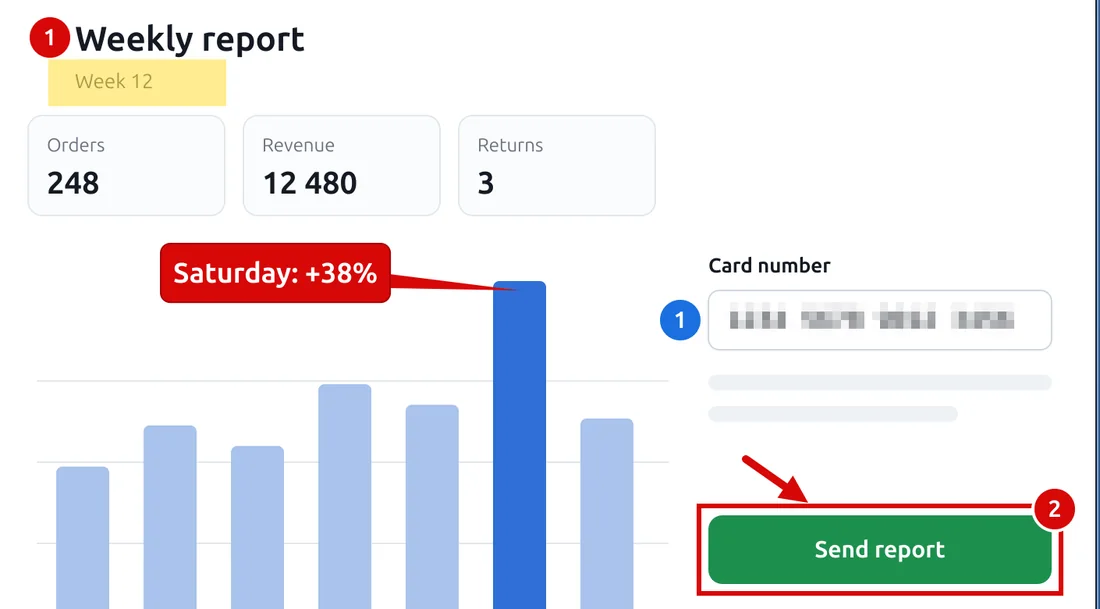
- Hide personal data: the shield button (key H) finds phone numbers, email addresses, card numbers, IBANs and links with keys on a screenshot and covers them with a solid fill in one action. A list of what was found is on the right, with the values masked; each row has its own choice: hide completely, show the last 4, the start and the end, and for email only the domain or the name. “Reveal a piece” and “Hide a piece” work on the spot you outline. Everything is done on your computer, without the internet.
- Print and PDF: a new “Print ▾” button at the bottom of the editor with “Print…” (Ctrl+P), “Print preview…” and “Save as PDF…” (Ctrl+Shift+P). The PDF keeps full quality, and the page follows the screenshot or is A4, as set in the settings. If there is no printer, the program offers to save a PDF.
- Stickers: a new “Sticker” tool (key S, in the “Labels” group) with 71 color emoji, badges “Click here”, “Important”, “New”, “Error”, “Done” and numbers in circles. You can search by name, recent ones come first, and they look the same on Windows and Linux.
- Shadow, frame and margin: the “Screenshot shape” menu has a new item, “Shadow, frame and margin…”. It works together with the screenshot shape and goes into both print and PDF.
- Pin on top of windows: the “Pin” button in the editor and in the selection window (F3) keeps the screenshot on top of all windows. Drag it with the mouse, the wheel changes the size, Ctrl+wheel changes the transparency.
- Reading a QR code: if a screenshot contains a QR code or a barcode, the editor shows a “QR” button with “Open link” (with a confirmation) and “Copy the code text”. No internet needed.
- Color picker and precise frame: the “Color picker” tool (J) shows and copies a color and offers to draw with it. In the selection window the arrow keys move the frame by 1 pixel, with Shift by 10, and Alt changes the size.
- Tray icon menu: the items now have icons, the menu is split into “Capture” and “Tools”, there are new “Learn” and “Help” submenus, and “Screen area” shows your shortcut.
- Icon near the clock: the new blue-teal icon is easier to see on the blue Windows taskbar. The program logo stays the same.
- Updates: the dot on the bell about a new version lights up sooner, because the program checks every 6 hours, after waking from sleep and when you open the bell. The update window now shows the point of each change.
- Snooze and “Don’t show”: in the “Snooze ▾” menu of the helper windows the last item is “Don’t show” (this version’s news, the question about features, the introduction). The buttons of these windows are no longer cut off.
- Error log: an unexpected error no longer closes the program silently but opens a “Something went wrong” window with the buttons “Copy report” and “Send report” (sending only when you press it). The log has none of your texts or personal paths, and you can open it from “About”.
- Linux GNOME: if an old ClipSD extension installed by hand is found, the window offers “Replace”. After you log out and log in again, the “Open windows” list will work.
Version 1.35.0
released
- Tour of features. New “Tour of features” window (tray icon menu): every feature on the left, new ones on top with a “New” tag, a real editor on a practice image on the right. Pick a feature: everything dims except the right button; “Show me”: a cursor shows how it is done; “Now you”: repeat it and the program notices it worked. Studied features get a tick and the “New” tag turns grey. Nothing is saved to your screenshots folder.
- Picture as a separate screenshot. A picture from your phone, a file or the clipboard can now be opened as a separate screenshot instead of only being inserted into the open one: the “From phone” button and the “Insert image” menu have a choice, “Insert into this screenshot” or “Open as a separate screenshot”, and it is remembered. After inserting, “Open separately” appears for a few seconds, and a selected inserted picture always has this button.
- From phone. The QR code in the “Screenshot/photo from phone” window is larger, and an “Enlarge” button under it opens the code big on a white background.
- Settings. OK, Cancel and Apply buttons: “Apply” turns changes on at once and keeps the window open. Appearance and language change as you pick them, “Cancel” brings the old ones back.
- Snooze. The “New in version” window, the “Tour of features” and the introduction window now have a “Snooze ▾” button instead of “Later”: a click snoozes for an hour, the arrow lets you choose 15 minutes, 1 hour, 3 hours, until tomorrow or a week. The window comes back by itself at a quiet moment and remembers the time after a restart.
- Color hint. The “Keep drawing in this color” button shows a square of the color you will draw with next.
- New in this version. The “New in version” window no longer pops up over the text, translation or an unsaved screenshot, and “What's new” in the bell is marked as read once you have seen the news.
- Text from a picture. Recognition is installed with one “Install recognition” button right in the program: on Windows, Windows asks for permission, on Linux the system asks for a password, and everything needed is installed by itself. If recognition for your language is missing, the program warns you in advance, before recognizing, and after the installation it recognizes the screenshot again. If the text still comes out in Latin letters, the window shows which language was used. The settings show the installed languages (the “Recognition:” line) and have an “Install another language” button.
- Update. “Restart now” no longer blinks in a loop: the phone window hidden after a photo does not block it, and if the update waits for something, the window says what.
Version 1.34.2
released
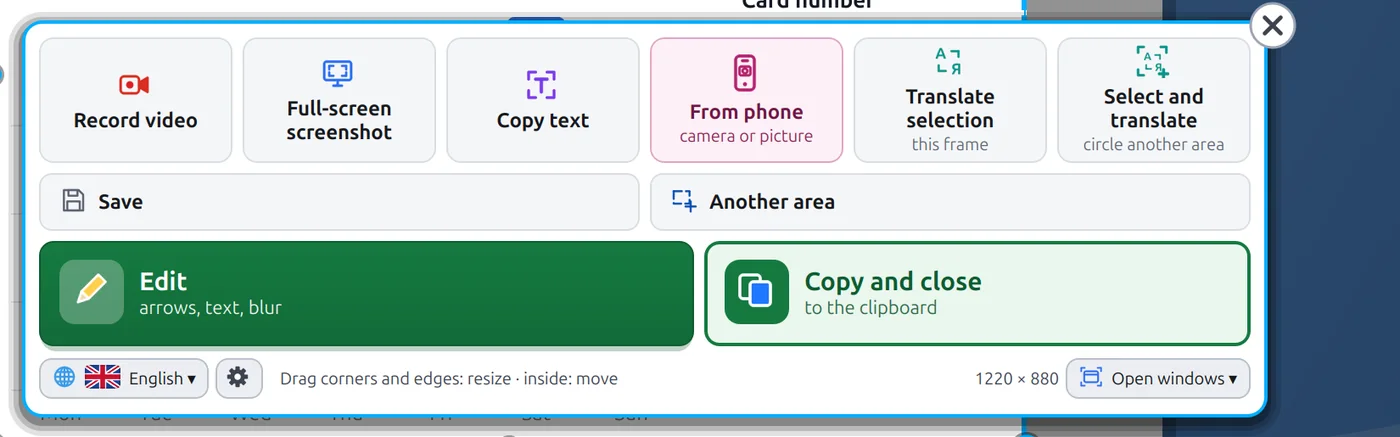
- From phone. The selection panel has a new “From phone” tile, and the editor has a “From phone” button at the top of the window: take a photo with your phone camera or send a picture from it. From the editor the photo goes straight into the open screenshot as a separate picture: you can move it and drag its corners, and “Undo” removes it.
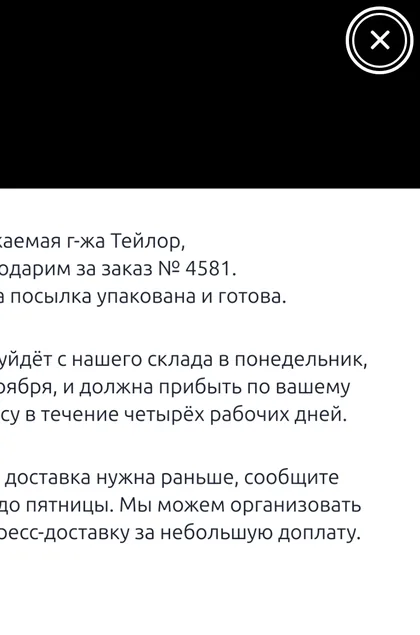
- From phone. You can look at the photo on the phone before sending it: tap it and it opens full screen. Zoom with two fingers or a double tap, close it with the cross or the “Back” button.
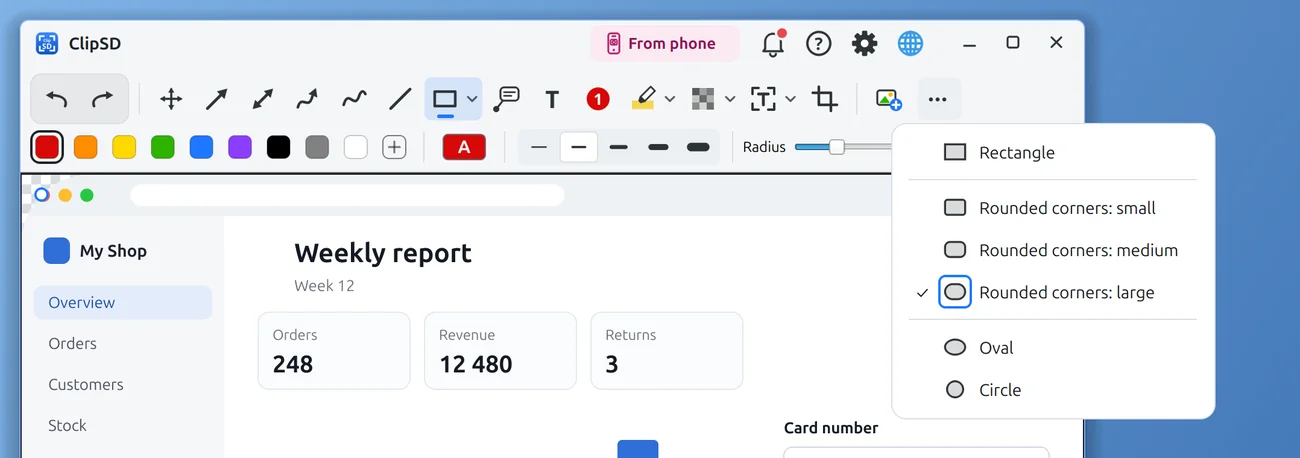
- Screenshot shape. The editor has a new “Screenshot shape” button next to “Insert image”: rounded corners (small, medium, large or your own radius), oval or circle. The circle can be moved with the mouse. In PNG and on the clipboard the area outside the shape is transparent, in JPG it is white. In a narrow window the shapes are in the “All tools” menu.
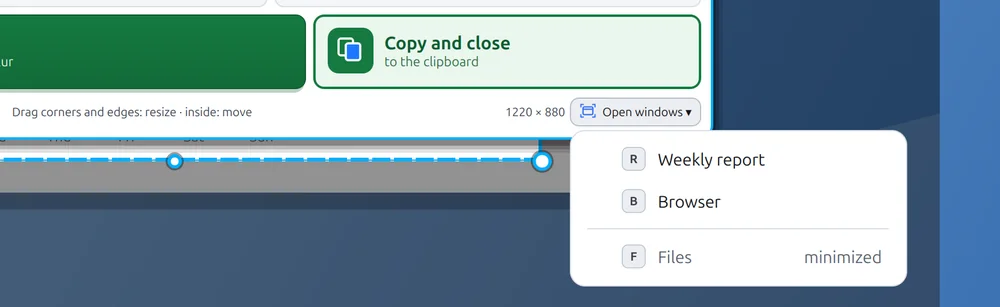
- Open windows. “Open windows ▾”: a window screenshot. In the list each window shows the program's icon and name, so you see at once which one is the browser and which one is the document.
- Selection panel. A new bottom part: the main green “Edit” button (arrows, text, blur), next to it the light green “Copy and close”. Above them “Save” and “Another area”, the new name of “Select again”. The language and settings moved to the bottom left corner.
- Selection panel. “Save” no longer closes the selection window: the screenshot is written, the frame stays in place, and the file name is shown at the bottom. Then you can still copy the screenshot or open it in the editor.
- Editor. The “Screenshot not saved” window is easier to read: large dark text and clear buttons “Copy and close”, “Save” and “Close without saving”. Esc takes you back to editing.
- Numbers. If you pick another color for a number, a hint like “This color: numbering from 1” appears by the palette: each color has its own count.
- New in this version. After an update a short “New in version” window shows the main things, and new buttons carry a “New” label until you press them. To open the window again, use “What's new” in the tray icon menu. You can turn it off in the settings, “Updates” section.
- Translating in the editor. All translation buttons are now in one row at the top: the language, “Translation” and “Original”, “⋯” with the choice of view (“As a card” or “Over the text”), “Copy translation” and “Done”. The bottom strip is gone, and nothing is cut off in a narrow window.

- Translating in the editor. If the frame cut a line in half, it now stretches to the whole line: no junk and no gaps in the translation. The translated text is no longer cut off at the width.
- Translating in the editor. If you change the language while a translation is running, the text is translated again into the chosen language. “Copy translation” no longer copies an outdated translation.
- Translating in the editor. A translation error is shown as one card with a “Try again” button, and a yellow icon appears in the top row. The row also works from the keyboard: Tab moves between the buttons, Enter presses a button, Esc closes the “⋯” menu.
- Numbers. Each color now has its own numbering: red ones are counted apart from blue ones. The small square on a new number no longer covers the digit.
- Window screenshot. A “Open windows ▾” button appeared at the bottom of the selection panel, and the W key does the same. Pick a window and the frame fits it exactly. On GNOME and Windows, a window covered by other windows is captured whole. Minimized windows cannot be picked.
- Window screenshot. On GNOME the window list needs the updated ClipSD extension: press “Update”, then log out and log in again.
- Screenshot/photo from phone. In the tray icon menu and in the editor's “Insert image” there is a new item, “Screenshot/photo from phone”. Show the code on the computer, point the camera of a phone on the same Wi-Fi at it, and take photos: no apps to install. The photo is sent right away, and the buttons on the phone are big. The photo opens in the editor and comes to the front.
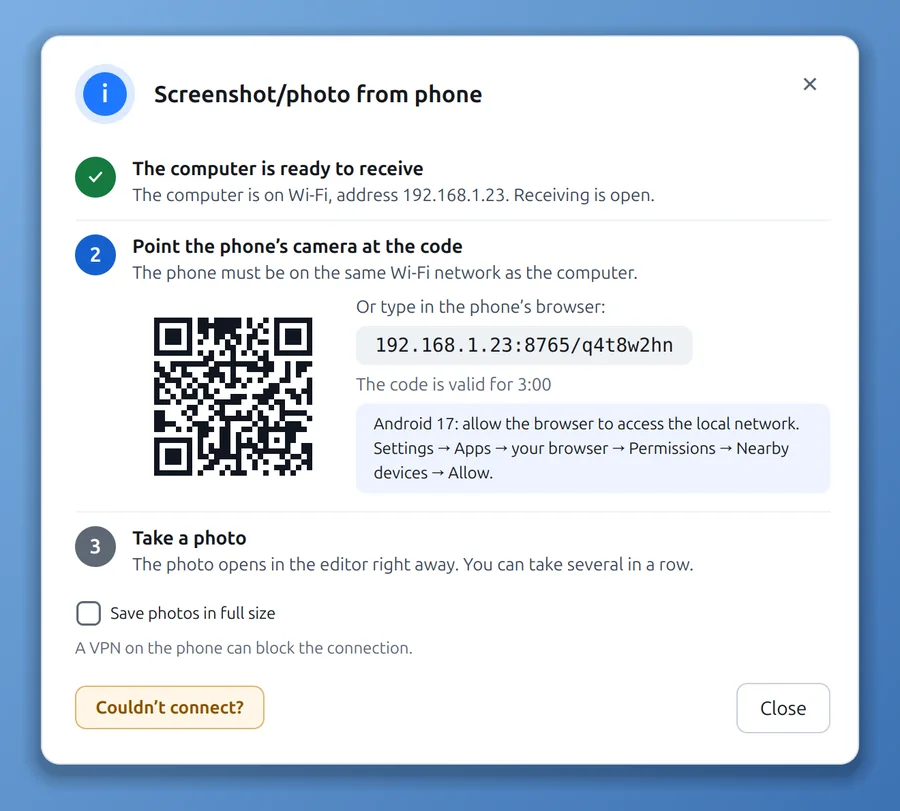
- Screenshot/photo from phone. By default the photo is shrunk to fit the computer screen. To keep it in full size, tick “Save photos in full size”. It works only on a home (private) network.
- Screenshot/photo from phone. If the phone does not connect, the window suggests what to check, in order: the VPN on the phone, the same Wi-Fi network, the browser permission “Nearby devices” on Android 17, and the computer's firewall (the “Allow” button).
- Windows. Russian text from a picture no longer turns into Latin letters. If Windows has no recognition for Russian text, the program offers to install it with the “Install recognition” button.
- Windows. Security: text recognition is now installed directly by the Windows program DISM, without PowerShell, and before Windows asks for permission the program tells you which Microsoft program the request is for (DISM or Windows PowerShell): this is normal, click “Yes”.
Version 1.32.3
released
- The program no longer closes by itself if you close the editor right after “Copy text”, or close the very first screenshot right after it opens.
- Updates. Esc or the cross in the download window only hide the window, the download continues; before, the program closed. “Try again” in the failure window during a download no longer starts a second download.
- Updates. A screenshot copied just before the restart for an update no longer disappears from the clipboard: after “Copy and close” or a copy made during the download, the program waits up to 2 minutes so that you can paste it, and only then restarts.
- Updates. The failure window and “What's new” no longer appear over the selection window or the editor: they show up a minute after you finish. If the program closes before then, the failure window appears at the next start.
- Updates. “Check for updates” answers with a window even when the program happens to be checking for updates by itself. If the update failure window is open, the button brings it to the front.
- Linux. Alt+W while an update is being installed no longer breaks the update.
- Two starts at almost the same time, for example a double click on the icon, no longer give two copies of the program with two icons.
- A click on the icon always opens the selection: the rating window or an update offer no longer appears instead.
- If the screenshot key combination is taken by another program, the message about it no longer gets lost (Windows and Linux outside GNOME): before, the combination silently did not work.
- Two screenshots saved in the same second no longer overwrite each other: the second file gets _2 in its name.
- Translating in pieces. The count of remaining characters no longer goes wrong when several pieces are translated at once. An error message on a small piece is shown in full. If you switch the language right at the end of a translation, the message that no text was found is no longer shown as an error.
Version 1.32.2
released
- Translating in pieces. The buttons of the translation window go to a free spot and do not cover the translated text or neighboring windows. A new piece does not land on a window that is already open. If there is no room for the buttons, the window keeps a cross in the corner, and the buttons appear when you hover the mouse over it.
- Translating the whole screen. Short lines, such as a tab title and an address, stay on one line.
- The “Copy text” button. On medium-sized screenshots the big button stays visible longer: “Translate all” goes first.
Version 1.32.1
released
- Redo in the editor. Ctrl+Y redoes an undone action again: on Windows the shortcut did nothing. Ctrl+Shift+Z works too.
- Rate ClipSD. The window after sending no longer stays on “Sending your rating…” once the rating has arrived. If you press Alt+W while rating, the review you typed is not lost: it comes back the next time you open the rating window.
- Urgent update. If the “Urgent ClipSD update” window was closed by a screenshot (Alt+W), it appears again once you are done with the screenshot, not a day later.
- Color of the selected object. Color and thickness of the selected object change for that object only. A hint appears under the palette: the “Keep drawing in this color” button keeps the new color for the next marks too.
- Custom colors. Colors picked with “+” are remembered as swatches before the “+” button. Up to three swatches are kept, and a right click removes one.
- Marker and pencil. If you start a stroke right at the edge of the previous one, a new stroke is drawn and the previous one does not move.
Version 1.32.0
released
- New editor. Tools are grouped (arrows and lines, shapes, labels, drawing and more). The “All tools” button shows all of them at once, together with their keys. For a narrow screenshot the editor window is narrow too: groups fold up, and every tool stays at hand.

- Right-click menu. The menu of a selected object no longer covers its frame and handles: it opens next to the object.
- Notifications bell. The editor has a bell, “Notifications”: a new version with the “Update” button, what's new in the installed version, and short messages from the program. A new version is announced by the bell first; the window offering the update appears later, if you haven't updated by then.
- Selection window tour. On your first screenshot the window shows step by step what the panel buttons do. To see it again, open the menu of the icon next to the clock: “Selection window tour”.
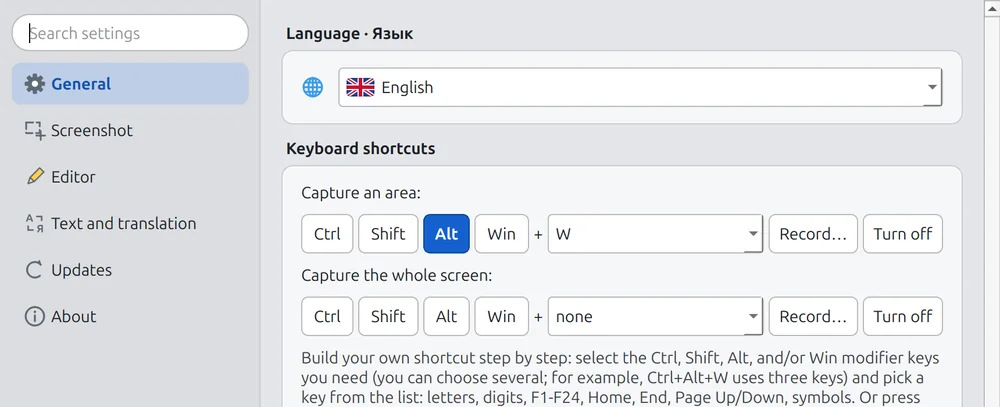
- Language names now have flags. A language chosen in the settings applies at once, without closing the window.
- Settings are split into sections. A list on the left (General, Screenshot, Editor, Text and translation, Updates, About) with search above it. The window remembers which section was open.
- Rate ClipSD. You can rate ClipSD from 1 to 5 stars and leave a review: the icon menu or “?” in the editor, “Rate ClipSD”. Now and then the program offers to rate it itself, but only when you are not taking a screenshot or working in the editor.
- Sharper screenshots on scaled displays. On scaled displays (125%, 150%, 200%) screenshots are sharper: the editor shows them without blur. On Linux, browsers and documents paste them at their original size, not stretched. In the settings, section “Screenshot”, you can choose the “Screenshot size”: full resolution or as on screen.
- A calmer look for windows. A calmer look and easier-to-read text: labels and buttons have more contrast, the main green button is darker, and the editor window has a thin frame by default.
- The About window. The “About” window now has the terms of use for the ClipSD name and icon and a link to news on Telegram.
Version 1.31.2
released
- Linux: updates install automatically again on newer systems (for example, Ubuntu 26.04). Previously, updates were downloaded but not installed.
- Linux: text recognition, links and autostart work again on newer systems.
- If an update fails to install, a window appears with the “Try again” and “Error report” buttons. The report does not include your username or paths to personal folders.
- After an update, the “What's new” window starts with “Update installed”.
Version 1.31.1
released
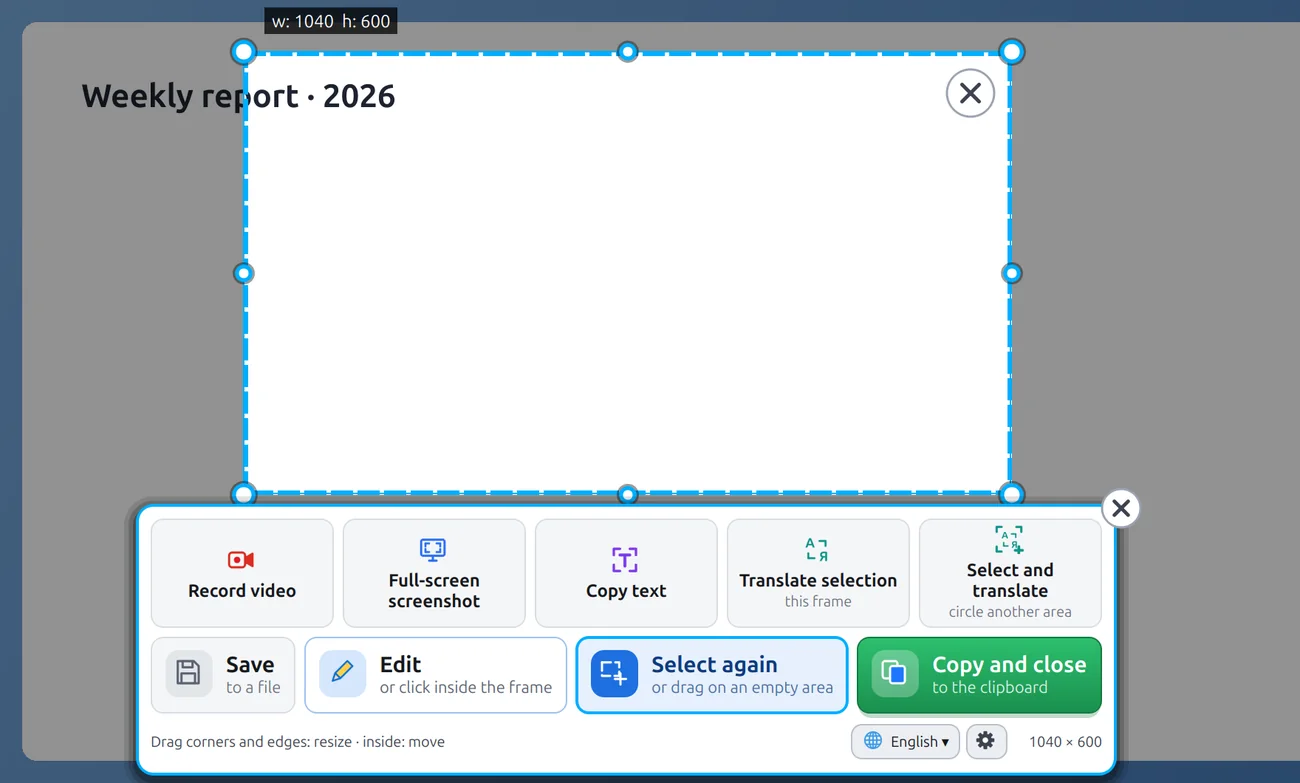
- You can now change the language and open Settings right in the area selection window: at the bottom of the panel, to the left of the size, there is a globe with the language name and a gear.

- Translation is split into two buttons: “Translate selection” translates the frame that is already there, and “Select and translate” lets you draw around another place. Translating the whole screen moved to the translation bar as the “Whole screen” button.

- The panel in the selection window is about 15% more compact and now sits next to the frame instead of covering it: below, above, to the right or to the left. It moves inside the frame only when there is no room outside.
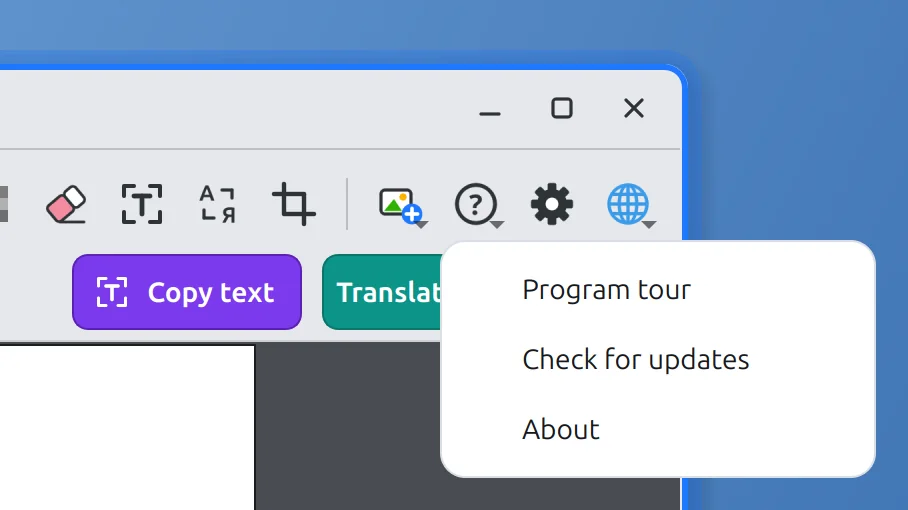
- Settings has a new “Updates” section: the version, a “Check for updates” button and a checkbox for automatic checks. The “?” button in the editor now opens a menu: “Program tour”, “Check for updates” and “About”.

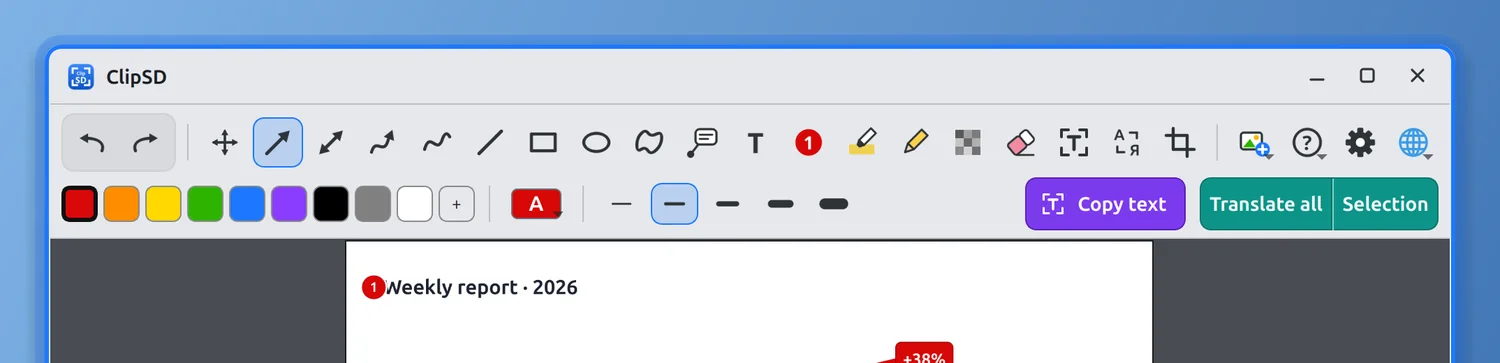
- In the editor, “Undo” and “Redo” are at the start of the row on their own background. By default the tools are arranged as: move, arrows together, then shapes, then the rest. An order you set yourself stays as it is; you can restore the new one with “Restore the default tool order”.
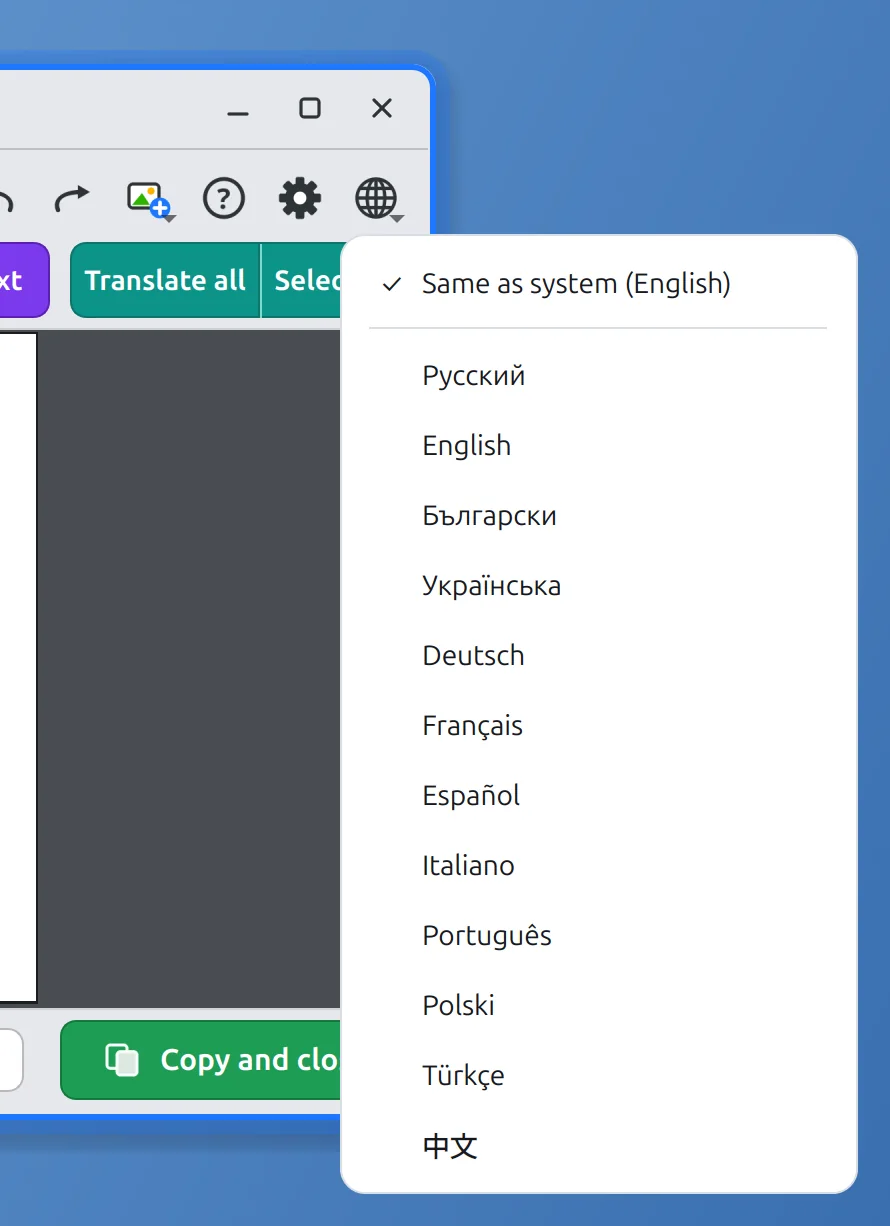
- The globe icon is light blue everywhere, so it is easier to find.
- Linux: fixed the first installation, which could silently stop halfway before.
Version 1.31.0
released
- ClipSD has 12 interface languages: Russian, English, Bulgarian, Ukrainian, German, French, Spanish, Italian, Portuguese, Polish, Turkish, and Chinese. You can change the language instantly without restarting ClipSD: from the tray icon menu, the globe in the editor, the first step of the tour, or Settings.
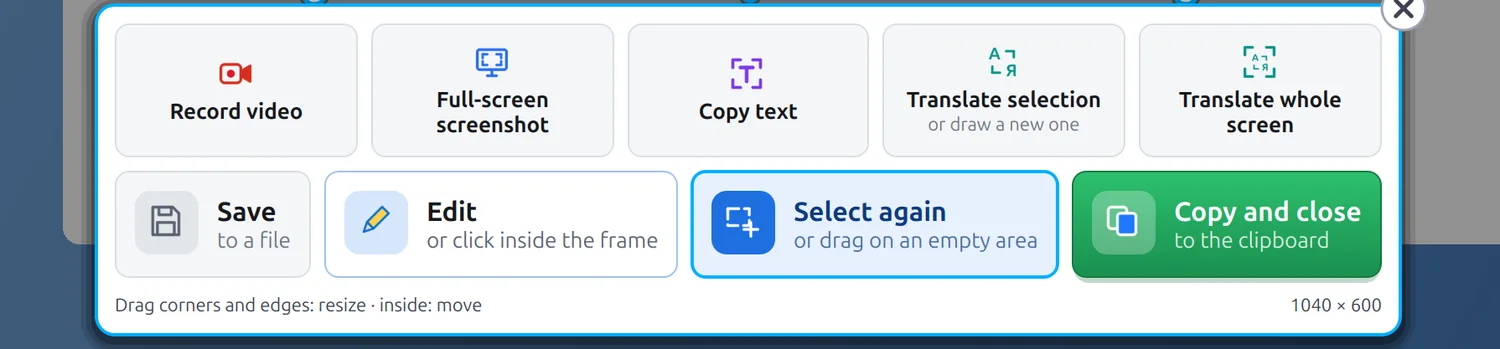
- A new panel in the area selection window provides full-screen screenshots, video recording, text copying, and translation at the top, with “Edit”, “Save”, and “Copy and close” at the bottom.
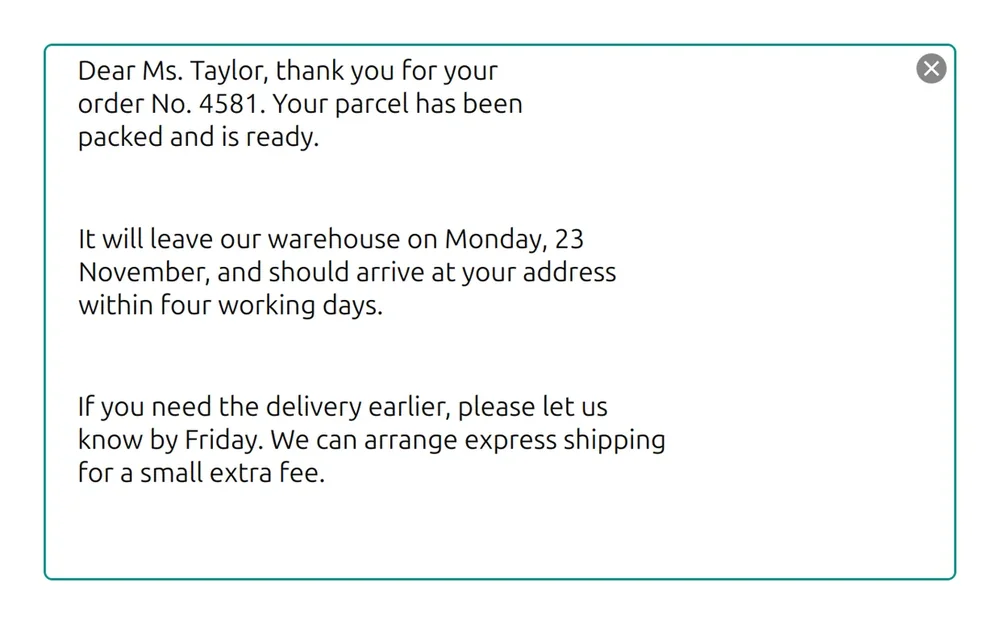
- Translate one section at a time: draw around an area to place the translation over its text, then draw around another area to translate that too. Press Esc to exit the mode.
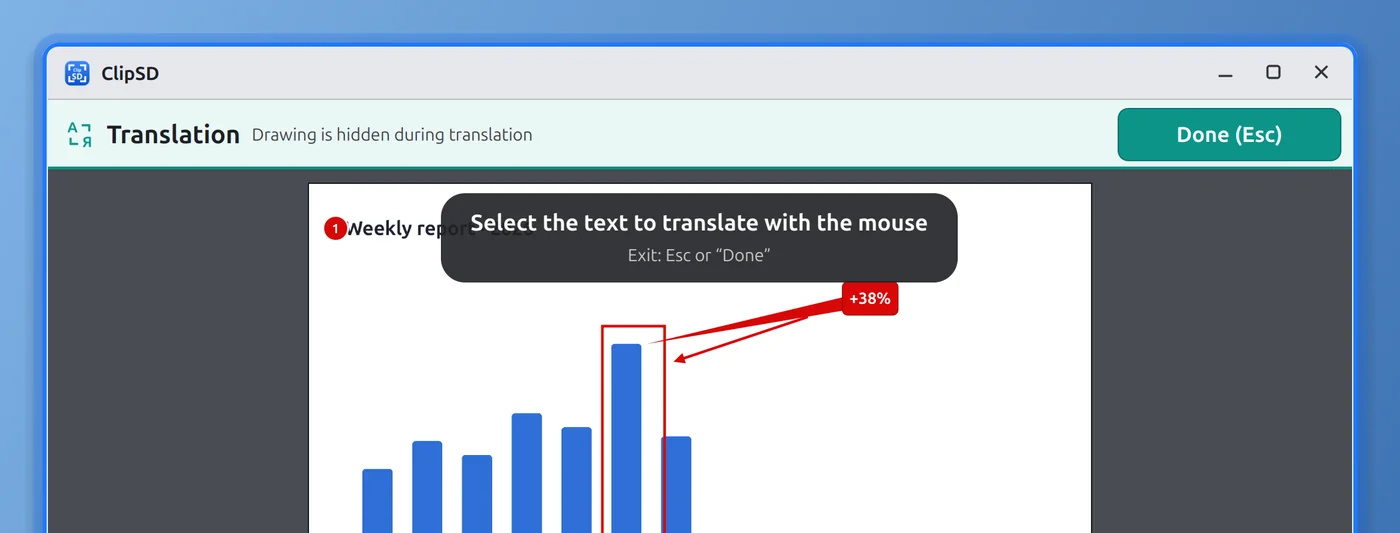
- The editor modes “Copy text”, “Crop”, and “Translation” now have a bar at the top with a large exit button. Press Esc to return to the previous tool.
- ClipSD now updates itself. Once a day, it checks for a new version and offers “Update”, “Later”, or “Skip this version”. To check immediately, open the tray icon menu and select “Check for updates”. Updates are verified with a digital signature; if the new version fails to start, ClipSD restores the previous one.